
HTTP Archive: new code, new charts
The HTTP Archive is a permanent record of web performance information started in October 2010. The world’s top 17,000 web pages are analyzed twice each month to collect information such as the number and size of HTTP requests, whether responses are cacheable, the percent of pages with errors, and the average Page Speed score. The code is open source and all the data is downloadable.
The next big step is to increase the number of URLs to 1 million. The biggest task to get to this point is improving the database schema and caching. This past week I made some significant code contributions around caching aggregate stats across all the web sites. Even with only 17K URLs the speed improvement for generating charts is noticeable.
The new stats cache allows me to aggregate more data than before, so I was able to add several trending charts. (The increases/decreases are Nov 15 2010 to Oct 15 2011.)
- percent of sites using Google Libraries API – up 6%
- percent of sites using Flash – down 2%
- percent of responses with caching headers – up 4%
- percent of requests made using HTTPS – up 1%
- percent of pages with one or more errors – down 2%
- percent of pages with one or more redirects – up 7%
Most of the news is good from a performance perspective, except for the increase in redirects. Here’s the caching headers chart as an example:

I dropped the following charts:
- popular JavaScript libraries – I created this chart using handcrafted regular expressions that attempted to find requests for popular frameworks such as jQuery and YUI. Those regexes are not always accurate and are hard to maintain. I recommend people use the JavaScript Usage Statistics from BuiltWith for this information.
- popular web servers – Again, BuiltWith’s Web Server Usage Statistics is a better reference for this information.
- sites with the most (JavaScript | CSS | Images | Flash) – These charts were interesting, but not that useful.
- popular scripts – This was a list of the top 5 most referenced scripts based on a specific URL. The problem is that the same script can have a URL that varies based on hostnames, querystring parameters, etc.
The new stats cache is a great step forward. I have a few more big coding sessions to finish but I hope to get enough done that we can start increasing the number of URLs in the next run or two. I’ll keep you posted.
frontend SPOF survey
Pat Meenan had a great blog post yesterday, Testing for Frontend SPOF. “SPOF” means single point of failure. I coined the term frontend SPOF to describe the all-too-likely situation where the HTML document returns successfully, but some other resource (a stylesheet, script, or font file) blocks the entire website from loading. This typically manifests itself as a blank white screen that the user stares out for 20 seconds or longer.
Frontend SPOF happens most frequently with third party content. If the HTML document returns successfully, then all the resources from the main website are likely to return successfully, as well. Third party content, however, isn’t controlled by the main website and thus could be suffering an outage or overload while the main website is working fine. As a result, the uptime of a website is no greater than the availability of the third party resources it uses that are in a position to cause frontend SPOF.
In my blog post of the same name I describe how Frontend SPOF happens and ways to avoid it, but I don’t provide a way for website owners to determine which third party resources may cause frontend SPOF. This is where Pat comes in. He’s created a public blackhole server: blackhole.webpagetest.org with the static IP address 72.66.115.13. Pointing your third party resources to this blackhole and reloading the page tells you if those resources cause frontend SPOF. Since Pat is the creator of WebPagetest.org, he has integrated this into the scripting capabilities of that tool so website owners can load their website and determine if any third party resources cause frontend SPOF.
/etc/hosts
I took a different approach outlined by Pat: I added the following lines to my /etc/hosts file (your location may vary) mapping these third party hostnames to point to the blackhole server:
72.66.115.13 apis.google.com
72.66.115.13 www.google-analytics.com
72.66.115.13 connect.facebook.net
72.66.115.13 platform.twitter.com
72.66.115.13 s7.addthis.com
72.66.115.13 l.addthiscdn.com
72.66.115.13 cf.addthis.com
72.66.115.13 api-public.addthis.com
72.66.115.13 widget.quantcast.com
72.66.115.13 ak.quantcast.com
72.66.115.13 assets.omniture.com
72.66.115.13 www.omniture.com
72.66.115.13 scripts.omniture.com
72.66.115.13 b.voicefive.com
72.66.115.13 ar.voicefive.com
72.66.115.13 c.statcounter.com
72.66.115.13 www.statcounter.com
72.66.115.13 www-beta.statcounter.com
72.66.115.13 js.revsci.net
After restarting my browser all requests to these hostnames will timeout. Pat’s blog post mentions 20 seconds for a timeout. He was running on Windows. I’m running on my Macbook where the timeout is 75 seconds! Any website that references third party content on these hostnames in a way that produces frontend SPOF will be blank for 75 seconds – an easy failure to spot.
survey says
THE GOOD: At this point I started loading the top 100 US websites. I was pleasantly surprised. None of the top 20 websites suffered from frontend SPOF. There were several that loaded third party content from these hostnames, but they had safeguarded themselves:
- MSN makes a request to
ar.voicefive.com, but does it asynchronously using a document.write technique. - AOL references
platform.twitter.com, but puts the SCRIPT tag at the very bottom of the BODY so page rendering isn’t blocked. - IMDB uses the async version of Google Analytics, and puts the
platform.twitter.comwidget in an iframe. - LiveJournal goes above and beyond by wrapping the Google +1 and Facebook widgets in a homegrown async script loader.
THE BAD: Going through the top 100 I found five websites that had frontend SPOF:
- CNET loads
http://platform.twitter.com/widgets.jsin the HEAD as a blocking script. - StumbleUpon loads
http://connect.facebook.net/en_US/all.jsat the top of BODY as a blocking script. - NFL loads
http://connect.facebook.net/en_US/all.jsin the HEAD as a blocking script. - Hulu, incredibly, loads Google Analytics in the HEAD as a blocking script. Please use the async snippet!
- Expedia loads
http://connect.facebook.net/en_US/all.jsas a blocking script in the middle of the page, so the right half of the page is blocked from rendering.
These results, although better than I expected, are still alarming. Although I only found five websites with frontend SPOF, that’s 5% of the overall sample. The percentage will likely grow as the sample size grows because best practices are more widely adopted by the top sites. Also, my list of third party hostnames is a small subset of all widgets and analytics available on the Web. And remember, I didn’t even look at ads.
Is it really worth blocking your site’s entire page for a widget button or analytics beacon – especially when workarounds exist? If you’re one of the five sites that faltered above, do yourself and your users a favor and find a way to avoid frontend SPOF. And if you’re outside the top 100, test your site using Pat’s blackhole server by editing /etc/hosts or following Pat’s instructions for testing frontend SPOF on WebPagetest.org.
Improving app cache
I recently found out about the W3C Workshop on The Future of Off-line Web Applications on November 5 in Redwood City. I won’t be able to attend (I’ll be heading to Velocity Europe), but I feel like app cache needs improving so I summarized my thoughts and sent it to the workshop organizers. I also pinged some mobile gurus and got their thoughts on app cache.
My Thoughts
SUMMARY: App cache is complicated and frequently produces an unexpected user experience. It’s also being (ab)used as a workaround for the fact that the browser’s cache does not cache in an effective way – this is just an arms race for finite resources.
DETAILS: I’ve spoken at many mobile-specific conferences and meetups in the last few months. When I explain the way app cache actually works, developers come up afterward and say “now I finally understand what was happening with my offline app.” These are the leading mobile developers in the world.
John Allsopp does a great job of outlining the gotchas, and I’ve added some (slides 50&51):
- HTML responses with the MANIFEST attribute are stored in app cache by default, even if they’re not in the CACHE: section of the manifest file.
- If a CACHE: resource 404s then none of the resources are cached.
- The manifest file must be changed in order for changed CACHE: resources to be updated.
- Modified CACHE: resources aren’t seen by the user until the second time they load the app – even if they’re online.
It’s easy to point out problems – you folks have the more difficult job of finding solutions. But I’ll make a few suggestions:
- Use updated resources on first load – The developer needs a way to say “if the user is online, then fetch (some/all) of the CACHE: resources that have changed before rendering the app”. I would vote to make this the default behavior, and provide a way to toggle it (in the manifest file or HTML attribute). Perhaps this should also be done at the individual resource level – “I want updated scripts to block the initial rendering, but nothing else”. The manifest file could have an indicator of which resources to check & download before doing the initial rendering.
- 404s – I haven’t tested this myself, but it seems like overkill. Every response in the CACHE: section should be cached, independent of the other responses. Perhaps this is browser-specific?
- updateReady flag – It’s great that developers can use the updateReady event to prompt the user to reload the app if any CACHE: resources have changed underneath them, but the bar is too high. In addition, have a flag that indicates that the browser should prompt the user automatically if any CACHE: resources were updated.
Finally, on the topic of arms race, I know many websites that are using app cache as a way to store images, scripts, and stylesheets. Why? It’s because the browser’s disk cache is poorly implemented. App cache provides a dedicated amount of space for a specific website (as opposed to a common shared space). App cache allows for prioritization – if I have 10M of resources I can put the scripts in the CACHE: section so they don’t get purged at the expense of less painful images.
Certainly a better solution would be for the browsers to have improved the behavior of disk cache 5 years ago. But given where we are, an increasing number of websites are consuming the user’s disk space. In most cases the user doesn’t have a way or doesn’t know how to clear app cache. Better user control over app cache is needed. I suggest that clearing “data” clears both the disk cache as well as app cache. Alternatively, we extend the browser UI to have an obvious “clear app cache” entry. Currently in Firefox and Chrome you can only clear app cache on a site-by-site basis, and the UI isn’t obvious. In Firefox it’s under Tools | Options | Advanced | Network | Remove. In Chrome it’s under chrome://appcache-internals/.
The most important near term fix is better patterns and examples.
- My first offline app had a login form on the index.html – how should I handle that?
- What if the JSON data in app cache requires authentication and the user is offline – use it or not?
- I’ve never seen an example that uses the FALLBACK: section.
Adoption of current app cache would go much more smoothly with patterns and examples that address these gaps, and perhaps a JS helper lib to wrap updateReady and other standard dev tasks.
Mobile Gurus
A great email thread resulted when I asked a bunch of mobile gurus for their thoughts about app cache. Here’s a summary of the comments that resulted:
| Scott Jehl | Agreed on app cache’s clumsiness. It’s so close though! The cache clearing is terrible for both users and developers. |
| Nicholas Zakas | +1 for AppCache clumsiness. My big complaint is requiring a special MIME type for the manifest file. This effectively limits its use to people who have access to their server configuration. |
| Yehuda Katz | My biggest concern is the lack of a feature that would make it possible to load the main index.html from cache, but only if the user agent is offline.Currently, if the user agent is online, the entire cache manifest, including the main index.html, is used. As a result, developers are required to come up with some non-standard UI to let the application user know that they should refresh the page in order to get more updated information.This is definitely the way to get the most performance, even when the user agent is online, but it creates an extremely clumsy workflow which significantly impedes adoption. I have given a number of talks on the cache manifest, and this caveat is the one that change the audience reaction from nodding heads to “oh no, another thing I have to spend time working out how to rebuild my application in order to use”.
Again, I understand the rationale for the design, but I think a way to say “if the user agent is online, block until the cache manifest is downloaded” would significantly improve adoption and widen the appropriate use-cases for the technology. |
| Scott Jehl | I agree – the necessary refresh is the biggest downfall for me, too. It’s really prohibitive for using appcache in progressive enhancement approaches (where there’s actually HTML content in the page that may update regularly).It’d be great if you could set up appcache to kick-in when the user is actually offline, but otherwise stay out of the way and let the browser defer to normal requests and caching. |
| Yehuda Katz | I actually think we can get away with a more aggressive approach. When the device is online, first request the application manifest. If the manifest is identical, continue using the app cache. This means a short blocking request for the app manifest, but the (good) atomic cache behavior. If the manifest is not identical, fall back to normal HTTP caching semantics.
It needs to be a single flag in the manifest I think. |
| Dion Almaer | Totally agree. In a recent mobile project we ended up writing our own caching system that had us use HTTP caching… It was very much a pain to have to do this work. |
I like Yehuda’s suggestion about a blocking manifest check when the user is online controlled by a flag in the manifest file. We need more thinking around how to improve app cache. Please checkout the W3C Workshop on The Future of Off-line Web Applications website and send them your thoughts.
UA switching: be careful
At least once a day I’m in a conversation, email thread, or twitter exchange about monitoring websites. Lately this has focused on mobile. Tools like WebPagetest make it easier to monitor websites from the perspective of a desktop browser, but doing this from the perspective of a mobile device is still a significant challenge.
This issue is a current topic of discussion around HTTP Archive Mobile. Blaze.io supports the project through its Mobitest framework: every two weeks I submit 1000 URLs to their framework which downloads each URL 3 times on a real iPhone. I love that the resultant waterfall chart and screenshots are gathered from a real phone. But our next step is to scale this up to 100K and then 1M URLs. It’s going to be hard to scale up to this using real phones due to cost and maintenance issues.
Another alternative is to use an emulator. The timings won’t be identical to the actual mobile device, but HTTP Archive Mobile is more focused on HTTP headers, size and number of responses, etc. These structural aspects of the page should be identical between the actual phone and its emulator. We’ll soon do side-by-side tests to confirm this.
But this post is about a third alternative: UA switching. Changing the User-Agent string of a desktop browser to mimic a mobile browser and using that to gather the data could be accomplished this afternoon. The issue is that the results might differ from what is seen on an actual phone. Websites that don’t do anything special for mobile would probably be similar enough. And websites that look at the UA string on the serverside to determine how to alter the page would also be okay. But websites that adapt the page based on browser feature detection on the clientside, e.g. responsive web design, would differ dramatically.
When asked for an example of such a site I recalled seeing Scott Jehl at Breaking Development Conference talking about the recent launch of Boston Globe using responsive web design. It’s an amazing feat of engineering. Its adaptability from a single code base across so many devices is beautiful to watch in this promo video.
Because the Boston Globe uses responsive web design, the UI varies depending on the browser – not the UA string. Here’s a screenshot from my iPhone. The content has been modified to fit on the iPhone’s smaller screen.

Figure 1. iPhone browser
Figure 2 shows the Boston Globe as rendered inside Chrome on my laptop. Since the screen is much bigger the content is laid out quite differently compared to the iPhone. We see three columns instead of one, a wider horizontal navigation bar, etc.

Figure 2. Chrome
Figure 3 is also from Chrome, but in this case I changed the User-Agent string to mimic an iPhone:
Mozilla/5.0 (iPhone; U; CPU iPhone OS 4_3_1 like Mac OS X; en-us) AppleWebKit/533.17.9 (KHTML, like Gecko) Version/5.0.2 Mobile/8J2 Safari/6533.18.5Even though the UA string says “iPhone”, the page is laid out exactly as it is for normal Chrome. (I confirmed the UA string by inspecting HTTP headers.)

Figure 3. Chrome with iPhone User-Agent string
Responsive web design is fairly new. There are still a number of websites that modify the HTML layout based on serverside UA detection. In fact, while generating the screenshot for Figure 3 I tried several other websites and most of them returned a layout customized for iPhone.
If you’re working on a framework to monitor mobile websites, be careful about taking the UA switching approach. If the websites you’re monitoring do serverside UA detection, you’ll probably be okay. But if the web app is based on clientside feature detection, the results you receive from UA switching won’t match what is seen on real mobile devices. As the adoption of responsive web design increases so will the number of websites that fall into this gap of mismeasurement. Real devices or emulators are a safer bet.
App cache & localStorage survey
In preparation for my talk at HTML5 Dev Conf I surveyed the Alexa US Top 10 websites to see which ones use app cache and localStorage. I mostly focus on mobile these days so it’s natural to think I ran these tests from a mobile browser, which I did. But I also tested with a desktop browser.
Some people might ask, Why a desktop browser?
To which I would reply, Why not a desktop browser?
I blogged previously about how Google and Bing use localStorage on mobile devices. It’s a powerful performance technique. They break up their JavaScript and CSS into smaller blocks and save them in localStorage. Simultaneously they set a cookie so that the server knows not to send that payload on subsequent searches, a savings of 150-170 kB before gzipping.
In the comments on that post Simon asked:
I’m curious why the techniques with LocalStorage are used for the mobile versions of the search sites but not for the standard desktop versions – I would think that this technique would work well [on] all clients, no?
I agree – this and other HTML5 web storage techniques make sense for the desktop, too. There are some reasons why we’re seeing these used first on mobile:
- Mobile latencies are higher and connection speeds are lower, so clientside caching is more important on mobile.
- Mobile disk cache sizes are smaller than desktop sizes, so a better alternative is needed for mobile.
- There are still desktop browsers with significant market share that are missing many HTML5 capabilities, whereas mobile browsers have more support for HTML5.
Even though the motivation for app cache and localStorage are stronger for mobile, they should also be used when the website is accessed from a desktop browser. I did a quick survey to see which of the top 10 websites were using app cache or localStorage on either mobile or desktop. Here are the results:
| Website | Mobile | Desktop | ||
|---|---|---|---|---|
| app cache | localStorage | app cache | localStorage | |
| Google Search | no | yes | no | yes [1] |
| Bing | no | yes | no | no |
| no | yes | no | no | |
| Yahoo! Front Page | no | yes [2] | no | no |
| YouTube | no | yes | no | no |
| Amazon | no | no | no | yes [3] |
| yes | yes | no | yes | |
| no | no | no | no | |
| eBay | no | no | no | no |
| MSN.com | no | no | no | no |
[2] Yahoo! Front Page only stores two numbers.
[3] Amazon on the desktop only stores a ~30 character string.
Ignoring the small uses of localStorage, 5 of these top 10 websites use localStorage on mobile, but only 2 out of 10 use localStorage (or sessionStorage) on desktop. None of them use app cache, either on mobile or desktop except for Twitter on mobile. I’m surprised no one is using app cache. It’s not appropriate for all applications, such as search, but I would enjoy catching up on Twitter, Facebook, and LinkedIn on the plane – potentially from my laptop in addition to my mobile device. App cache not only brings this offline capability, but provides better caching than the browser’s disk cache.
I’ll repeat this survey in a few months to track the progress. I expect we’ll see the use of localStorage and app cache increase, and for desktop to catch up to mobile.
Making a mobile connection
I just returned from Breaking Development Conference, an amazing gathering of many of the brightest minds in mobile web development. On the flight home I watched the video ($$) and slides from Rajiv Vijayakumar’s talk on Understanding Mobile Web Browser Performance at Velocity 2011. Rajiv works at Qualcomm where his team has done extensive performance analysis of the Android browser. Some of their findings include:
- Android 2.2 has a max of only 4 HTTP connections which limits parallel downloads. (This was increased to 8 in Android 2.3 and 35 in Android 3.1 according to Browserscope.)
- It supports pipelining for reduced HTTP overhead.
- Android’s cache eviction is based on expiration date. This is a motivation for setting expiration dates 10+ years in the future.
- Android closes TCP sockets after 6 seconds of inactivity.
This last bullet leads to an interesting discussion about the tradeoffs between power consumption and web performance.
Radio link power consumption
3G devices surfing the Web (do people still say “surfing”?) establish a radio link to the carrier’s cell tower. Establishing and maintaining the radio link consumes battery power. The following graph from Rajiv’s slides shows power consumption for an Android phone while loading a web page. It rises from a baseline of 200 mA to ~400 mA as the radio link is initialized. After the page is loaded the phone drops to 300 mA while the network is inactive. After 10 seconds of inactivity, the radio link reaches an idle state and power consumption returns to the 200 mA baseline level.

The takeaway from this graph is that closing the radio link sooner consumes less battery power. This graph shows that the radio link continues to consume battery power until 10 seconds of inactivity have passed. The 10 second radio link timer begins once the web page has loaded. But there’s also a 6 second countdown after which Android closes the TCP connection by sending a FIN packet. When Android sends the FIN packet the radio link timer resets and continues to consume battery power for another 10 seconds, resulting in a total of 16 seconds of higher battery consumption.
One of the optimizations Rajiv’s team made for the Android browser running on Qualcomm chipsets is to close the TCP connections after the page is done loading. By sending the FIN packet immediately, the radio link is closed after 10 seconds (instead of 16 seconds) resulting in longer battery life. Yay for battery life! But how does this affect the speed of web pages?
Radio link promotion & demotion
The problem with aggressively closing the phone’s radio link is that it takes 1-2 seconds to reconnect to the cell tower. The way the radio link ramps up and then drops back down is shown in the following figure from an AT&T Labs Research paper. When a web page is actively loading, the radio link is at max power consumption and bandwidth. After the radio link is idle for 5 seconds, it drops to a state of half power consumption and significantly lower bandwidth. After another 12 seconds of inactivity it drops to the idle state. From the idle state it takes ~2 seconds to reach full power and bandwidth.

These inactivity timer values (5 seconds & 12 seconds in this example) are sent to the device by the cell tower and thus vary from carrier to carrier. The “state machine” for promoting and demoting the radio link, however, is defined by the Radio Resource Control protocol with the timer values left to the carrier to determine. (The protocol dubs these timer values “T1”, “T2”, and “T3”. I just find that funny.) If the radio link is idle when you request a web page, you have to wait ~2 seconds before that HTTP request can be sent. Clearly, the inactivity timer values chosen by the carrier can have a dramatic impact on mobile web performance.
What’s your carrier’s state machine?
There’s an obvious balance, sort of a yin and yang, between power consumption and web performance for 3G mobile devices. If a carrier’s inactivity timer values are set too short, users have better battery life but are more likely to encounter a ~2 second delay when requesting a web page. If the carrier’s inactivity timer values are set too long, users might have a faster web experience but shorter battery life.
This made me wonder what inactivity timer values popular carriers used. To measure this I created the Mobile State Machine Test Page. It loads a 1 kB image repeatedly with increasing intervals between requests: 2, 4, 6, 11, 13, 16, and 20 seconds. The image’s onload event is used to measure the load time of the image. For each interval the image is requested three times, and the median load time is the one chosen. The flow is as follows:
- choose the next interval
i(e.g, “2” seconds) - wait
iseconds - measure
t_start - request the image
- measure
t_endusing the image’s onload - record
t_end - t_startas the image load time - repeat steps 2-6 two more times and choose the median as the image load time for interval
i - goto step 1 until all intervals have been tested
The image should take about the same time to load on every request for a given phone and carrier. Increasing the interval between requests is intended to see if the inactivity timer changes the state of the radio link. By watching for a 1-2 second increase in image load time we can reverse engineer the inactivity timer values for a given carrier.
I tweeted the test URL about 10 days ago. Since then people have run the test 460+ times across 71 carriers. I wrote some code that maps IP addresses to known carrier hostnames so am confident about 26 of the carriers; the others are self-reported. (Max Firtman recommended werwar for better IP-to-carrier mapping.) I’d love to keep gathering data so:
I encourage you to run the test!
The tabular results show that there is a step in image load times as the interval increases. (The load time value shown in the table is the median collected across all tests for that carrier. The number of data points is shown in the rightmost column.) I generated the chart below from a snapshot of the data from Sept 12.

The arrows indicate a stepped increase in image load time that could be associated with the inactivity timer for that carrier. The most pronounced one is for AT&T (blue) and it occurs at the 5 second mark. T-Mobile (yellow) appears to have an inactivity timer around 3 seconds. Vodafone is much larger at 15 seconds. Sprint and AT&T Verizon have similar profiles but the step is less pronounced.
There are many caveats about this study:
- This is a small sample size.
- The inactivity timer could be affected by other apps on the phone doing network activity in the background. I asked people to close all apps, but there’s no way to verify they did that.
- A given carrier might have different kinds of networks (3G, 4G, etc.). Similarly, they might have different inactivity timer values in different regions. All of those different conditions would be lumped together under the single carrier name.
What’s the point?
Hats off to Rajiv’s team at Qualcomm for digging into Android browser performance. They don’t even own the browser but have invested heavily in improving the browser user experience. In addition to closing TCP connections once the page is loaded, they increased the maximum number of HTTP connections, improved browser caching, and more.
I want to encourage this holistic approach to mobile performance and will write about that in more depth soon. This post is pretty technical, but it’s important that mobile web developers have greater insight into the parts of the mobile experience that go beyond HTML and JavaScript – namely the device, carrier network, and mobile browser.
For example, in light of this information about inactivity timers, mobile web developers might choose to do a 1 pixel image request at a set interval that keeps the radio link at full bandwidth. This would shorten battery life, so an optimization would be to only do a few pings after which it’s assumed the user is no longer surfing. Another downside is that doing this would use more dedicated channels at the cell tower, worsening everyone’s experience.
The right answer is to determine what the tradeoffs are. What is the optimal value for these inactivity timers? Is there a sweet spot that improves web performance with little or no impact on battery life? How did the carriers determine the current inactivity timer values? Was it based on improving the user’s web experience? I would bet not, but am hopeful that a more holistic view to mobile performance is coming soon.
(lack of) Caching for iPhone Home Screen Apps
Yesterday’s post, Unexpected Reloads in WebKit, revealed an interesting behavior that affects caching in Safari:
When you load the same URL back-to-back in Safari, the second load is treated the same as hitting Reload.
This is bad for performance because the browser issues a Conditional GET request for each resource instead of using the cached resource.
It’s important to be aware of this behavior when testing the primed cache experience in Safari, so web performance engineers should take note. However, in the real world it’s unlikely this behavior has much of an impact on desktop users. Here’s the table from yesterday’s post that shows how this Reload-like behavior is triggered when re-requesting a page:
| way of loading URL again | like Reload? |
|---|---|
| hit RETURN in location field | yes |
| delete URL and type it again | yes |
| launch same URL via bookmark | yes |
| click link to same URL | yes |
| go to another URL then type 1st URL again | no |
| modify querystring | no |
| enter URL in a new tab | no |
| Table 1. Triggering reload behavior in Safari | |
It’s possible that real world users might type the same URL or open the same bookmark two times in a row in the same tab, but it probably doesn’t happen that often. So what’s the big deal?
So what’s the big deal?
Whenever I see strange performance behavior I think about where that behavior might have a significant impact. Is there any place where this back-to-back Safari Reload behavior could have a significant impact? A comment from yesterday’s post hints at the answer:
Why is this article named “Unexpected Reloads in WebKit�
Chrome is based on Webkit and doesn’t has same issue. Perhaps it would be less confusing to name it “Unexpected Reloads in Safariâ€.
Other people gave me the same feedback on the backchannel – why did I say “WebKit” instead of “Safari”.
Here’s why: WebKit is used in a lot of browsers. Whenever I see a bug (or a feature) in one popular WebKit-based browser I wonder if it exists in others. The main WebKit-based browsers I focus on are Chrome, Safari, Android, and iPhone. As soon as I noticed this behavior in Safari my next step was to conduct the same tests in Chrome, Android, and iPhone. As the commenter noted, this unexpected Reload behavior does not happen in Chrome. And it does not happen on Android (tested on my Nexus S). But it does happen on iPhone.
While it’s true that iPhone users are unlikely to manually launch the same URL twice-in-a-row in the same tab, there is a situation when this happens automatically: when launching home screen apps.
Home screen apps are a powerful feature on iPhone and Android that allow users to save URLs to the home screen and launch them similar to native apps. Unfortunately, launching home screen apps on the iPhone triggers something similar to the Reload behavior we see in Safari – where resources aren’t read from cache and instead generate extra HTTP requests. Let’s take a look at a few examples of home screen apps, starting with simple to more complex.
Amazon: simple URL
Typing http://www.amazon.com/ into the iPhone browser displays a version of Amazon’s front page that is customized for mobile – there’s less content, the images are smaller, etc. However, there is not a prompt to save the URL to the home screen. We can do that anyway using the arrow function key at the bottom of the screen and selecting “Add to Home Screen”.
If you’ve used home screen apps you might have noticed that they always open in the same browser tab. Let’s run a little test to confirm this:
- Click the Amazon home screen icon. This opens Amazon in mobile Safari.
- Open another tab by clicking the “pages” function key and opening a “New Page”. Enter some non-Amazon URL in this new tab, for example http://fast.stevesouders.com/ (a very lightweight page I use for testing). At this point we have at least two tabs, one with Amazon and one with fast.stevesouders.com, and we’re looking at the fast.stevesouders.com tab.
- Go back to the home screen and click the Amazon icon again.
- Note that you’re taken back into mobile Safari to the first tab that contains Amazon.
We just opened the exact same URL back-to-back in the same tab. We didn’t do it intentionally – that’s the default behavior for iPhone home screen apps. Here’s a waterfall chart for this test. (You can view an interactive waterfall by loading the HAR file in pcapperf.)

The home screen app URL is http://www.amazon.com/gp/aw/h.html/187-9233150-9797455. The first time the home screen app is launched starts at the top with 187-9233150-9797455. Since the cache was empty all the subsequent resources have 200 responses. There are some 404s for icons followed by the request for fast.stevesouders.com.
The second launch of the Amazon home screen app (187-9233150-9797455 below fast.stevesouders.com) is where it gets interesting. When the Amazon home screen app is launched the second time, a Conditional GET request is made for all of the resources even though these resources are in the cache with a future expiration date.
All of the resources that are re-requested have an expiration date more than 10 years in the future. For example, the response headers for title_gradient._V233984477_.png are:
content-length: 291
expires: Tue, 06 May 2031 21:44:21 GMT
last-modified: Mon, 10 Aug 2009 11:50:45 GMT
cache-control: max-age=626560472
date: Wed, 29 Jun 2011 01:09:49 GMT
content-type: image/png
We know it was cached because when the Amazon home screen app is launched the second time the Conditional GET request for title_gradient._V233984477_.png has an If-Modified-Since header that contains the last-modified date in the initial response:
if-modified-since: Mon, 10 Aug 2009 11:50:45 GMT
It appears that we’ve stumbled into the Reload-like behavior we saw in Safari on the desktop. Further evidence of this is if you launch the home screen app, then type a new URL over the Amazon URL, and launch the home screen app again the resources are read from cache instead of generating numerous Conditional GET requests. (Load this HAR file in pcapperf to see for yourself.)
Untappd: full screen app
Amazon was a simple home screen app – really just a bookmark on the home screen. Developers can do more with home screen apps to make them launch and look like native apps. As described in Apple’s How-To’s for Safari on iPhone, various parts of the home screen app user experience are customizable including the home screen icon, viewport, and zooming and scaling. Developers can also have their home screen app launch in “full screen mode” by hiding the Safari UI components, including the status bar and location bar. In this situation, every time the home screen app is launched it uses the same “tab” with the exact same URL – thus triggering the Reload behavior.
Let’s have a look at Untappd on the iPhone. The first time you navigate to http://untappd.com/ in iPhone’s browser you get a suggestion to add the web app to the home screen:

After which you’ll have a customized Untappd home screen icon:

Now let’s investigate how caching works for this home screen app. We start by clearing the cache then launching the home screen app. You’ll notice there is no location bar or other Safari controls. Then we go back to the home screen and launch the Untappd home screen app again. The waterfall chart is shown below. (Here’s the HAR file.)

The first time the Untappd home screen app is launched it loads seven HTTP requests. Three of these resources are cacheable: jquery.min.js (1 year), gears_init.js (1 hour), and ga.js (1 day). Loader.gif and ajax-loader.png don’t have a future expiration date, but they do have Last-Modified and ETag response headers that could be used in a Conditional GET request.
But we see that the second time Untappd is launched from the home screen, all of the resources are re-requested. To make matters worse, none of these are Conditional GET requests, so a 200 status code is returned with the full response body.
The punchline
It’s unfortunate that home screen apps suffer from this bad caching behavior on the iPhone. Thankfully, there is a workaround: application cache. I ran similar tests on other home screen apps that use application cache. The resources listed in the CACHE: section of the manifest file were used on the iPhone without generating Conditional GET requests.
I feel bad about recommending the use of application cache. This is an issue with the browser cache on mobile Safari (and to a lesser degree on desktop Safari) that should be fixed. It’s a significant amount of work for developers to adopt application cache. The plus side is that doing so achieves the ability to work offline.
After this lengthy analysis and numerous waterfalls, here’s the punchline in a nutshell:
Home screen apps on iPhone are slower because resources are re-requested even though they should be read from cache. Use application cache to avoid this performance problem.
Unexpected Reloads in WebKit
People who work on web performance often need to load the same URL over and over again. Furthermore, they need to do this while simulating a real user’s empty cache experience and primed cache experience. When I want to analyze the empty cache experience the flow is simple: go to about:blank, clear the browser cache, enter the URL, and hit RETURN.
But what’s the right way to fetch a page repeatedly when analyzing the primed cache experience?
The main goal when testing the primed cache version of a page is to see which resources are read from cache. The goal for better performance is to cache as many responses as possible thus reducing the number of requests made when the cache is primed. If a resource has an expiration date in the future, the browser uses the cached version and doesn’t have to make an HTTP request resulting in a faster page. If a resource is expired (the expiration date is in the past) the browser issues a Conditional GET request using the If-Modified-Since and If-None-Match request headers. If the resource hasn’t changed then the server returns a simple 304 status code with no body. This is faster (because there’s no response body) but still takes time to do the HTTP request. (See my article on ETags for examples of IMS and INM.)
One way to re-request a page is to hit the Reload button, but this doesn’t give an accurate portrayal of the typical primed cache user experience. Hitting Reload causes the browser to always make an IMS/INM request for resources in the page, even for cached resources that have an expiration date in the future. Normally these resources would be used without generating an HTTP request. Although users do occasionally hit the Reload button it’s more likely that they’ll navigate to a page via a link or the location field, both of which avoid the time consuming Conditional GET requests generated when hitting Reload.
The technique I adopted years ago for re-requesting a page when testing the primed cache is to click in the location field and hit RETURN. That’s a fine approach in IE, Firefox, Chrome, and Opera, but not in Safari. Let’s investigate why.
hitting RETURN in the location field
I’m using Untappd as an example. Untappd has 68 requests when loaded on the desktop. Figure 1 shows the waterfall chart for the first 31 requests when loaded in Firefox 4 with an empty cache:

- Figure 1. untappd.com – Firefox 4 – empty cache
Most of the resources shown in Figure 1 have an expiration date in the future and therefore won’t generate an HTTP request if the user has a primed cache. To test that I click in the location field and hit RETURN. The resulting waterfall chart is shown in Figure 2. Sure enough the number of HTTP requests drops from 68 to 4!

- Figure 2. untappd.com – Firefox 4 – primed cache
If you repeat this experiment in Chrome, Firefox, Internet Explorer, and Opera you’ll get similar results – empty cache generates 68 requests, primed cache generates 4 requests. However, the result is very different in Safari 5. It’s important to understand why.
Safari is different
This test shows that Untappd has done a good job of optimizing the primed cache experience – the number of HTTP requests made by the browser drops from 68 to 4. Running the same test in Safari 5 produces different results. Clearing the cache and loading untappd.com in Safari 5 loads 68 HTTP requests – just as before. To test the primed cache experience we click in the location field and hit RETURN. Instead of only 4 requests there are 68 HTTP requests.
Why are there 64 more HTTP requests in Safari 5 for the primed cache test? Looking at the HTTP request headers we see that these are all Conditional GET requests. Let’s use http://ajax.googleapis.com/ajax/libs/jquery/1.4.2/jquery.min.js as the example (it’s the 8th request in Figure 1). In the empty cache scenario the HTTP request headers are:
Accept: */*
Cache-Control: max-age=0
Referer: http://untappd.com/
User-Agent: Mozilla/5.0 (Macintosh; [snip...] Safari/533.20.27
The HTTP status code returned for that empty cache request is 200 OK.
In the primed cache test when we hit RETURN in the location field we see that the request for jquery.min.js contains an extra header:
Accept: */*
Cache-Control: max-age=0
If-Modified-Since: Mon, 15 Feb 2010 23:30:12 GMT
Referer: http://untappd.com/
User-Agent: Mozilla/5.0 (Macintosh; [snip...] Safari/533.20.27
The header that’s added in the primed cache test is If-Modified-Since. This is a Conditional GET request. The HTTP status code that’s returned is 304 Not Modified. Even though all I did was hit RETURN in the location field, Safari treated that like hitting the Reload button.
unexpected “reload” in Webkit
Unlike other browsers, Safari 5 treats hitting RETURN in the location field the same as clicking the Reload button. When else does this happen? Assuming you’ve loaded a URL in Safari and are looking at that page, this table lists various ways to load that URL again. For each technique I show whether loading the URL this way generates extra Conditional GET requests similar to clicking Reload.
| way of loading URL again | like Reload? |
|---|---|
| hit RETURN in location field | yes |
| delete URL and type it again | yes |
| launch same URL via bookmark | yes |
| click link to same URL | yes |
| go to another URL then type 1st URL again | no |
| modify querystring | no |
| enter URL in a new tab | no |
| Table 1. Triggering reload behavior in Safari | |
This black box testing indicates that whenever the same URL is loaded back-to-back in the same tab, Safari 5 treats it as a Reload. I was describing this behavior to Jay Freeman (saurik) at Foo Camp. He pointed me to this code from WebCore:
else if (sameURL)
   // Example of this case are sites that reload the same URL with a different cookie
   // driving the generated content, or a master frame with links that drive a target
   // frame, where the user has clicked on the same link repeatedly.
   m_loadType = FrameLoadTypeSame;
Searching in that same file for FrameLoadTypeSame we find this code:
case FrameLoadTypeReload:
case FrameLoadTypeReloadFromOrigin:
case FrameLoadTypeSame:
case FrameLoadTypeReplace:
   history()->updateForReload();
   m_client->transitionToCommittedForNewPage();
   break;
This code doesn’t account for the behavior, but it does show that FrameLoadTypeSame and FrameLoadTypeReload are treated as similar cases in this context, and perhaps that’s why IMS/INM requests are generated.
One important takeaway from this is: don’t hit RETURN in the location field to test primed cache experience in Safari. Instead, go to a different URL and then type the test URL in the location field, or open a new tab and type the URL.
There’s a second more important takeaway from this. I’ll cover that in tomorrow’s post. If you know the answer, please don’t spoil it. Oh what the heck – if you think you know the answer go ahead and add a comment.
HTTP Archive: servers and most 404s
I launched the HTTP Archive about a month ago. The reaction has been positive including supportive tweets from Tim O’Reilly, Werner Vogels, Robert Scoble, and John Resig. I’m also excited about the number of people that have already started contributing to the project. Two new stats charts are available thanks to patches from open source contributors.
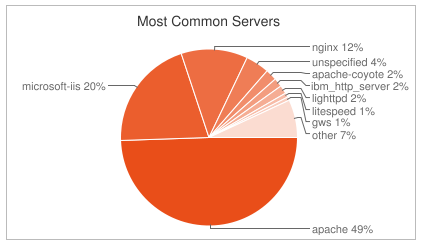
James Byers contributed the patch for generating the Most Common Servers pie chart. This chart is similar to BuiltWith’s Web Server chart. BuiltWith shows a higher presence of IIS than shown here. Keep in mind the sample sets are different – the HTTP Archive hits the world’s top ~17K URLs while BuiltWith is covering 1M URLs.
The other new chart comes from Carson McDonald. It shows pages with the most 404s. Definitely a list you don’t want to find your website on.

l’ve added some other features I’ll blog about tomorrow and am planning a bigger announcement later this week, so stay tuned for some more HTTP Archive updates.
HTTP Archive: max-age
There’s a long list of interesting stats to be added to the HTTP Archive. I’m planning on knocking those off at about one a week. (If someone wants to help that’d be great – contact me. Familiarity with MySQL and Google Charts API is a plus.)
Last week I added an interesting stat looking at the cache lifetime being specified for resources – specifically the value set in the Cache-Control: max-age response header. As a reminder, the HTTP Archive is currently analyzing the top ~17K websites worldwide. Across those websites a total of ~1.4M resources are requested. The chart below shows the distribution of max-age values across all those resources.
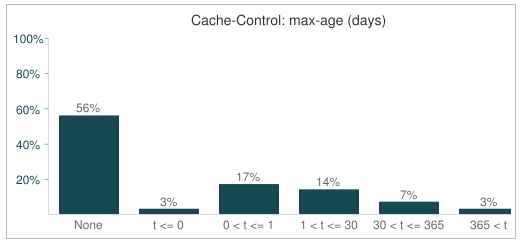
56% of the resources don’t have a max-age value and 3% have a zero or negative value. That means only 41% of resources are cacheable. In more concrete terms, the average number of resources downloaded per page is 81. 33 of those are cacheable, but the other 48 will likely generate an HTTP request on every page view. Ouch! That’s going to slow things down. Only 24% of resources are cacheable for more than a day. Adding caching headers is an obvious performance win that needs wider adoption.