
I <3 image bytes
Much of my work on web performance has focused on JavaScript and CSS, starting with the early rules Move Scripts to the Bottom and Put Stylesheets at the Top from back in 2007(!). To emphasize these best practices I used to say, “JS and CSS are the most important bytes in the page”.
A few months ago I realized that wasn’t true. Images are the most important bytes in the page.
My focus on JS and CSS was largely motivated by the desire to get the images downloaded as soon as possible. Users see images. They don’t see JS and CSS. It is true that JS and CSS affect what is seen in the page, and even whether and how images are displayed (e.g., JS photo carousels, and CSS background images and media queries). But my realization was JS and CSS are the means by which we get to these images. During page load we want to get the JS and CSS out of the way as quickly as possible so that the images (and text) can be shown.
My main motivation for optimizing JS and CSS is to get rendering to happen as quickly as possible.
Rendering starts very late
With this focus on rendering in mind, I went to the HTTP Archive to see how quickly we’re getting pages to render. The HTTP Archive runs on top of WebPagetest which reports the following time measurements:
- time-to-first-byte (TTFB) – When the first packet of the HTML document arrives.
- start render – When the page starts rendering.
- onload – When window.onload fires.
I extracted the 50th and 90th percentile values for these measurements across the world’s top 300K URLs. As shown, nothing is rendered for the first third of page load time!
| Table 1. Time milestones during page load | |||
| TTFB | start render | onload | |
|---|---|---|---|
| 50th percentile | 610 ms | 2227 ms | 6229 ms |
| 90th percentile | 1780 ms | 5112 ms | 15969 ms |
Preloading
The fact that rendering doesn’t start until the page is 1/3 into the overall page load time is eye-opening. Looking at both the 50th and 90th percentile stats from the HTTP Archive, rendering starts ~32-36% into the page load time. It takes ~10% of the overall page load time to get the first byte. Thus, for ~22-26% of the page load time the browser has bytes to process but nothing is drawn on the screen. During this time the browser is typically downloading and parsing scripts and stylesheets – both of which block rendering on the page.
It used to be that the browser was largely idle during this early loading phase (after TTFB and before start render). That’s because when an older browser started downloading a script, all other downloads were blocked. This is still visible in IE 6&7. Browser vendors realized that while it’s true that constructing the DOM has to wait for a script to download and execute, there’s no reason other resources deeper in the page couldn’t be fetched in parallel. Starting with IE 8 in 2009, browsers started looking past the currently downloading script for other resources (i.e, SCRIPT, IMG, LINK, and IFRAME tags) and preloading those requests in parallel. One study showed preloading makes pages load ~20% faster. Today, all major browsers support preloading. In these Browserscope results I show the earliest version of each major browser where preloading was first supported.
(As an aside, I think preloading is the single biggest performance improvement browsers have ever made. Imagine today, with the abundance of scripts on web pages, what performance would be like if each script was downloaded sequentially and blocked all other downloads.)
Preloading and responsive images
This ties back to this tweet from Jason Grigsby:
I’ll be honest. I’m tired of pushing for resp images and increasingly inclined to encourage devs to use JS to simply break pre-loaders.
The “resp images” Jason refers to are techniques by which image requests are generated by JavaScript. This is generally used to adapt the size of images for different screen sizes. One example is Picturefill. When you combine “pre-loaders” and “resp images” an issue arises – the preloader looks ahead for IMG tags and fetches their SRC, but responsive image techniques typically don’t have a SRC, or have a stub image such as a 1×1 transparent pixel. This defeats the benefits of preloading for images. So there’s a tradeoff:
- Don’t use responsive images so that the preloader can start downloading images sooner, but the images might be larger than needed for the current device and thus take longer to download (and cost more for limited cellular data plans).
- Use responsive images which doesn’t take advantage of preloading which means the images are loaded later after the required JS is downloaded and executed, and the IMG DOM elements have been created.
As Jason says in a follow-up tweet:
The thing that drives me nuts is that almost none of it has been tested. Lots of gospel, not a lot of data.
I don’t have any data comparing the two tradeoffs, but the HTTP Archive data showing that rendering doesn’t start until 1/3 into page load is telling. It’s likely that rendering is being blocked by scripts, which means the IMG DOM elements haven’t been created yet. So at some point after the 1/3 mark the IMG tags are parsed and at some point after that the responsive image JS executes and starts downloading the necessary images.
In my opinion, this is too late in the page load process to initiate the image requests, and will likely cause the web page to render later than it would if the preloader was used to download images. Again, I don’t have data comparing the two techniques. Also, I’m not sure how the preloader works with the responsive image techniques done via markup. (Jason has a blog post that touches on that, The real conflict behind <picture> and @srcset.)
Ideally we’d have a responsive image solution in markup that would work with preloaders. Until then, I’m nervous about recommending to the dev community at large to move toward responsive images at the expense of defeating preloading. I expect browsers will add more benefits to preloading, and I’d like websites to be able to take advantage of those benefits both now and in the future.
a good blog post
Every morning I have a two hour breakfast where I catch up on the latest happenings in the world of web performance via email, Twitter, news, and blogs. My primary source for relevant blog posts is the Planet Performance RSS Feed – I recommend anyone working on web performance subscribe to this feed.
Twitter is another major source of blog post links. It’s a little noisier – which is why I only follow 37 people and love retweets. One of the people I follow is Stephen Shankland (@stshank). He’s the main person in what I consider “major media” (he’s a writer for CNET News) who really follows the web performance space. The other day he retweeted a blog post about responsive images by Paul Robert Lloyd, Responsive Images: What We Thought We Needed.
I read the post, enjoyed it, and learned some stuff so I tweeted about it.

Sharing a good blog post. Nothing big. But then I got this response:

I don’t personally know Paul nor Anselm. And Anselm’s question wasn’t at all obnoxious or unfounded. He was just curious why I had tweeted that URL. As I’ve been driving around the last few days I’ve been thinking about how I would answer this question. I really thought it was a good blog post – but why? The reasons for my tweet grew and grew to the point where I thought it deserved a blog post.
Here’s why I liked Responsive Images: What We Thought We Needed and by extension what I think makes a good blog post.
- Logical Structure
- Logical flow is key to good writing but is overlooked in many blog posts. Paul sets up the problem, provides some history, explains the proposed solutions, highlights the drawbacks, and wraps it up with a motivating conclusion. Perfect.
- Entertaining Writing Style
- Tech writing can be really boring. It takes a touch of flair to liven it up. Paul does that starting with the first sentence:
-
If you were to read a web designer’s Christmas wish list, it would likely include a solution for displaying images responsively.
- Mixing the main topic with the current cultural focus. Hemmingway? No. Made me smirk? Yes. Later he has a quote from Scrooge. Not only is this interesting as a reference to something outside of technology, it also took time to find the quote. And I loved this sentence:
-
That both feature verbose and opaque syntax, I’m not sure either should find its way into the browser – especially as alternative approaches have yet to be fully explored.
- The structure of this sentence is interesting. It causes me to slow down and really understand what he means. This might indicate that a simpler sentence or multiple sentences would have been easier for the reader to digest. But I felt a little challenge and enjoyed the change in beat to the rhythm of the read.
- Good Grammar
- Perhaps this isn’t big to most people, but OCD people like me (and Zakas and Crockford) see good grammar as attention to detail. And the details are really important when it comes to technology. I couldn’t find a single grammatical mistake when I read Paul’s post, which raises the probability that the details behind the technical analysis are solid as well. (On re-reading the post multiple times I discovered two typos. There might be more. Nevertheless this is much better than the norm.)
- Technically Sound
- I’ve worked with a lot of the alternatives for responsive images. I’m reluctant to say that I’m an expert, but I consider myself well informed. I think Paul’s description of the problem and arguments for what’s lacking are solid. I especially resonate with his third issue, “The size of a display has little relation to the size of an image”. This isn’t the first time I’ve heard this argument, but it’s more often than not left out of the discussion. The technical details and reasoning in the post were sound.
- Something to Learn
- I enjoy reading blog posts that provide me an opportunity to learn something new, or to help reinforce and reprioritize what I already know. Here are some of my takeaways from Paul’s post: Apple proposed srcset, verbosity is an issue, WebP helps, scaling images isn’t always the solution (see Bill Murray), and removing images is sometimes a good alternative.Â
- Informative Examples
- Examples have to be relevant, understandable, and pithy. Paul’s code samples do this, as well as his visual examples of Bill Murray and image grids.
- Thorough References
- Paul’s article is full of great links:Â complex, devilish,
<picture>, Responsive Images Community Group,srcset, experimentation with image compression, contextual methods of querying, and more. I had visited many of these links previously – which reinforced my sense that this was a quality article as I continued to read. This also told me that the links I hadn’t visited were worth visiting – which they are.
It takes a lot of time to write a good blog post. I appreciate the dedication that Paul and so many others in the web dev community show by sharing their thoughts and what they’ve learned. It’s pretty amazing.
Waterfall UI Conventions
I spend a lot of time looking at HTTP waterfall charts. Each browser has its own waterfall chart tool which makes sense since the way to track network events differs across browsers. There are some tools that span multiple browsers, like HttpWatch. Since I work across all browsers I’m impacted by the lack of UI consistency across these tools. This blog post summarizes the current state and proposes the adoption of waterfall UI conventions.
It’s easy to see the inconsistencies looking at these waterfall charts from the tools I use most frequently.* Each screenshot shows the waterfall for Wikipedia. The main areas I’m going to discuss are the colors and names for connection states, Content-Types, and loading events. There are many other areas where consistency would be nice – such as overall layout and default columns – but those are more subjective and the tool owner might feel their choices make their tool more preferred. The consistency changes I’m suggesting don’t effect the information shown, just how it looks.

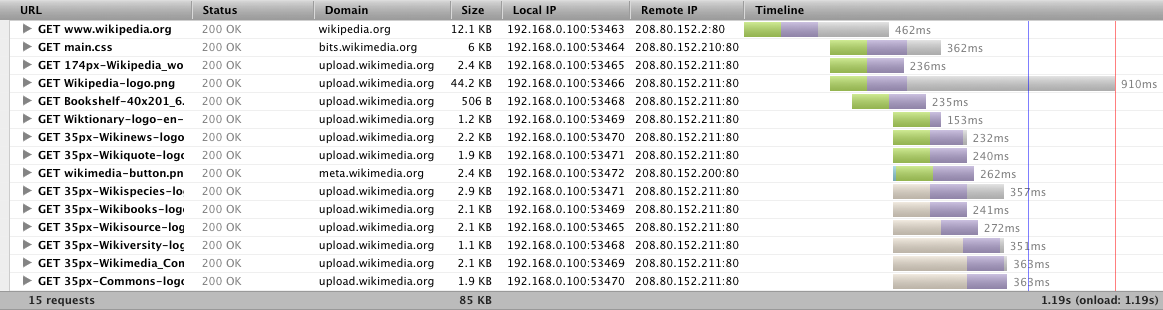
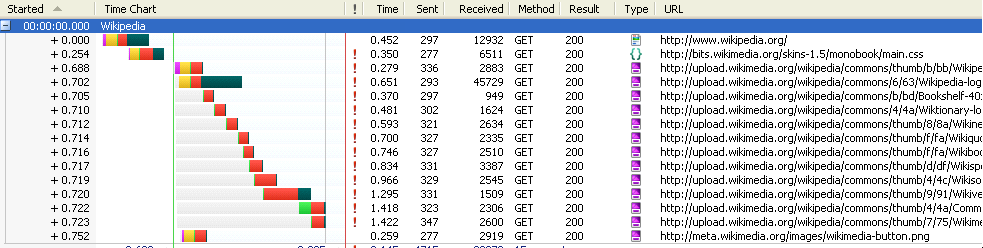

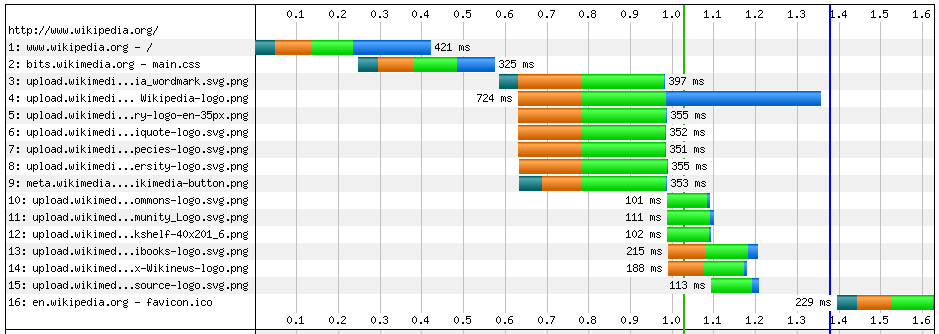
One big difference is the information shown in the horizontal bar. Chrome Developer Tools uses the horizontal bar to reflect the Content-Type: blue for HTML, green for CSS, purple for images, etc. All the other tools use the bar to show the length of each connection state: DNS lookup, sending the request, downloading the response, etc. I find the Content-Type more useful, but rather than debate one over the other I most like HttpWatch’s approach where they show both: the connection states in the bar and the Content-Type in a tiny icon (see the “Type” column). Even if the other tools didn’t want to show icons, they could use font colors to reflect Content-Type. Let’s explore the connection states and Content-Type choices across the tools.
Connection States
The names and colors used for the different network connection states vary across the tools. In some cases, the granularity of connection states varies as well. The colors and names used by each tool are shown in this table:
| Chrome Dev Tools | Blocking | DNS Lookup | Connecting | Sending | Waiting | Receiving |
| Firebug | Blocking | DNS Lookup | Connecting | Sending | Waiting | Receiving |
| HttpWatch | Blocked | DNS Lookup | Connect | Send | Wait | Receive |
| IE9 Dev Tools | Wait | Start | Request | Response | ||
| WebPagetest | DNS Lookup | Initial Connection | Time to First Byte | Content Download | ||
Let’s look at the names first. Chrome Dev Tools and Firebug use the same names for every connection state: Blocking, DNS Lookup, Connecting, Sending, Waiting, and Receiving. All of these names are progressive verb forms except “DNS Lookup” – saying “looking up DNS” would be painful. I’d prefer simple verb forms which would also give us consistent tense across all names: Block, Lookup DNS, Connect, Send, Wait, and Receive. It’s also important to get similar connection states across all tools: IE9 Dev Tools and WebPagetest don’t show blocking and combine send & wait into a single state.
The colors are much more inconsistent. Chrome Dev Tools uses the same color for all states. The rest of the tools have almost no overlap. Here’s my proposal:
- Block (gray) – because nothing is really happening
- Lookup DNS (yellow) – like the Yellow Pages
- Connect (red) – because this is the tricky negotiation part (red is caution)
- Send (blue) – it’s a good color that contrasts well with red
- Wait (light purple) – a mellow color while we wait
- Receive (green) – because this is the payment that’s been received (green like money – sorry for the U.S. bias)
These are subjective choices and I’m open to other proposals. I most care about gray for Block and yellow for Lookup DNS. I also defer to someone who understands the color wheel. (I painted for years but never learned.)
Content-Type
Chrome Dev Tools is the only tool that reflects the Content-Type in the waterfall’s horizontal bars. The choice of whether to use the horizontal bar to show Content-Type or connection states is up to the tool developer. My preference would be to follow Chrome Dev Tools and use the bar to show Content-Type. A pop-up or detail view could be used to see the connection state information. Chrome Dev Tools, Firebug, HttpWatch, and IE9 Dev Tools already display a detailed view of connection states when you select a bar.
Regardless of the information shown in the horizontal bars, users would benefit in other ways from consistent colors mapped to Content-Type. This color mapping could be used as the text color in the waterfall chart and in charts of total requests and download size broken out by Content-Type.
The color map from Chrome Dev Tools is:
- HTML (blue)
- JavaScript (orange)
- CSS (green)
- images (purple)
- text/plain (yellow)
- redirect (gray)
I’m fine with these colors. If it was up to me I’d make JavaScript red because I have so many errors in my JavaScript. I’d make CSS purple because that’s “fancier” (CSS is used to make pages look more stylish). I’d make images blue because they’re the most common resource type and my world is mostly blue (it’s a denim thing, not emotions). That leaves green for HTML. But again, purely subjective.
Load Events
Many of the tools draw a vertical line to mark the DOMContentLoaded and window load events. Again, the names and colors vary across the tools:
| Chrome dev tools | DOMContent | Load |
| Firebug | DOMContentLoaded | load |
| HttpWatch | Render Start | Page Load |
| IE9 dev tools | DOMContentLoaded | Load |
| WebPagetest | Start Render | Document Complete |
I like DOMContentLoaded and Load because I understand exactly what’s being measured. I’m less concerned about the colors; I’d pick blue and green if it was up to me.
Now what?
I’m working with Brian Pane and Jan Odvarko on some UI changes to Jan’s (Honza’s) HAR Viewer. I hope we’ll add Content-Type icons, in which case other tools could adopt those. If you’d be willing to create those icons please contact me.
As for the names and colors, I’m not sure how to proceed. Mark Nottingham suggested starting an “ether pad or wiki page”. I’d appreciate comments on these ideas and ways to move forward. Greater consistency across these tools will make it easier for developers to get on the web performance bandwagon, which is something I hope we all want.
HTTP Archive: nine months
Although the HTTP Archive was announced in March, I actually started gathering data back in November of 2010. This week’s run marks nine months from that initial crawl. The trends show that performance indicators are mixed, with some critical metrics like size and redirects on the rise.
[As a reminder, the HTTP Archive currently crawls approximately 17,000 of the world’s top websites. All of the comparisons shown here are based on choosing the “intersection” of sites across all of those runs. There are ~13K sites in the intersection.]
The transfer size of pages has increased 15% (95 kB) over nine months. The average size is now up to 735 kB. Note that this is the transfer size. Many text resources (including HTML documents, scripts, and stylesheets) are compressed so the actual size is larger. The bulk of this growth has been in images – up 18% (66 kB). Scripts have had the greatest percentage increase growing 23% (25 kB).
Nov 15 2010:

Aug 15 2011:
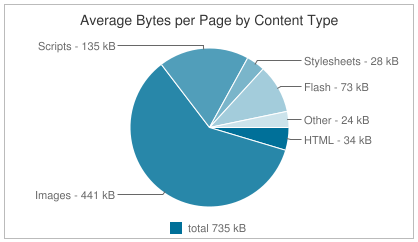
Note that these sizes are the total size of all images in the page and all scripts in the page, respectively. The average size of individual resources has stayed about the same over this nine month period. If individual resource size is the same, how is it that the total page size has increased? The increase in total transfer size is the result of a 10% increase in HTTP requests per page – that’s seven more resources per page.
Redirects are known to cause page delays, and yet the percentage of sites containing at least one redirect increased from 58% to 64%. Requests that fail are wasteful using connections that could have been used more productively, but sites with errors grew from 14% to 25%.
All the news isn’t gloomy. The use of Google Libraries API has increased from 10% to 14%. This is good for performance because it increases the likelihood that as a user navigates across sites the most common resources will be in their cache. In addition, serving those from the Google Libraries servers might be faster and more geographically distributed for smaller sites.
The use of Flash has dropped 2% from 47% to 45% of websites. Flash resources average 58 kB which is much larger than other resources, and there are fewer tools and best practices for optimizing Flash performance.
There are still many resources that do not have the necessary HTTP response headers to make them cacheable. Luckily the trend is moving toward more caching: the 61% of resources that did not have headers to make them cacheable has dropped to 58%. Stating the inverse, the number of resources with caching headers grew from 39% to 42% (+3%).
Here’s a recap of the performance indicators from Nov 15 2010 to Aug 15 2011 for the top ~13K websites:
- total transfer size grew from 640 kB to 735 kB
- requests per page increased from 69 to 76
- sites with redirects went up from 58% to 64%
- sites with errors is up from 14% to 25%
- the use of Google Libraries API increased from 10% to 14%
- Flash usage dropped from 47% to 45%
- resources that are cached grew from 39% to 42%
My kids started school this week. I’m hoping their first report card looks a lot better than this one.
HTTP Archive: 1M URLs, Internet Archive, Sponsors
The HTTP Archive provides a permanent record of web performance information. It started in October 2010 crawling 1K URLs. This was possible thanks to Pat Meenan’s help providing access to WebPagetest. A month later we increased coverage to the world’s top ~18K URLs. That was good, but the next step is 1M URLs. Today at Velocity I made two announcements that pave the way for achieving this goal.
Starting today the HTTP Archive is part of the Internet Archive. I met Brewster Kahle several years ago and have always admired the work the Internet Archive has done building a “digital library of Internet sites.” When I approached him about this merger we both saw it as an obvious fit. In addition to preserving a record of the content of these sites (via the Wayback Machine) we agreed it’s important to record how that content is built and served. It makes sense that researchers, historians, and scholars be able to find both sets of information under one roof. I’ll continue to run the HTTP Archive project.
The following companies have agreed to sponsor the work of the HTTP Archive: Google, Mozilla, New Relic, O’Reilly Media, Etsy, Strangeloop, and dynaTrace Software. In order to grow to 1M URLs we need data center space, servers, licenses, etc. Thanks to these sponsors we’ve started to build out this infrastructure and will be increasing our coverage soon.
I look forward to working with the Internet Archive on our mission of preserving a record of the Web for generations to come. If you would like to join the effort, I invite you to make a donation to the Internet Archive and contribute your coding skills to the open source project.


HTTP Archive: URL list, Flash trends
Last week I announced the launch of the HTTP Archive. The feedback has been very positive. I’ve already heard from a handful of performance gurus who have downloaded the data and done additional analyses. This was a major goal of the project and I’m excited to see it happening.
I made a few changes to HTTP Archive that I wanted to share in this blog post.
First, there’s a potential for apples-to-oranges comparisons because the list of URLs “crawled” by HTTP Archive changes from run to run due to errors and changes in the “top N” sorting of sources like Alexa and Fortune 500. When comparing two runs it’s unclear if differences are caused from a change in the sample set or actual changes in Internet behavior. This was exemplified by this tweet from @orionlogic:
Website flash usage dropped %16 since 6 months http://t.co/XI7IWvc (via httparchive.org + @souders ) #noflash
The link contains two pie charts from HTTP Archive:
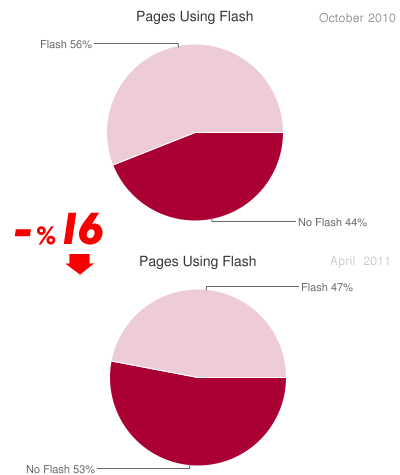
The issue is that the number of URLs grew from ~1000 in October 2010 to ~17,000 in April 2011. Those additional 16,000 websites have different behavior when it comes to using Flash. If we compare Nov 15 2010 to Mar 29 2011, both of which use ~17,000 URLs, the change is only 2%.
I made some changes to mitigate this issue.
- The first three runs that were done with only 1000 URLs are now hidden in the UI. The data is still available.
- Similar confusion can happen when viewing trending charts. The fix there is to use the “intersection” set of URLs across all runs. I added a note next to the “choose URLs” pick list to point out the benefit of choosing “intersection”. I moved the plot of “URLs Analyzed” to the top so it’s more apparent when the number of URLs changes from run to run.
On another note, Nicole Sullivan suggested I add a trending chart for transfer size and number of requests for Flash, in addition to the existing charts for HTML, JavaScript, CSS, and Images. The hypothesis was this might explain the increase in image sizes that I presented in my previous post – perhaps Flash was on the decline being replaced by HD images. The chart shows a slight decline in the size and number of Flash files, but not enough to explain the 61 kB increase in image transfer size.
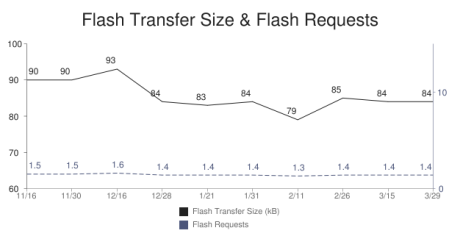
I made several other fixes that are less visible. Several people have submitted requests for new stats. I’ll keep knocking those off and blogging about them.
Site redesign
The list of things I’m good at does not include web design. As a result, this was how my website looked for the past few years:

Over the holidays I was lucky enough to get connected with Emily Matthews from NOLA Marketing who came up with a new design for stevesouders.com:

Around the same time I met Jennifer Stuart who develops, among other things, WordPress themes. She took the design and developed a custom theme for my blog from which I lifted parts to integrate back into the main site.
Shout outs to Emily and Jennifer – thanks for making my site look so much better!
bookmarklets for mobile: Mobile Perf and Page Resources
As I announced yesterday, I’m now focusing on mobile performance. Not surprisingly, I’ve laid claim to MobilePerf.com and MobilePerf.org. Right now they just redirect to my Mobile Perf home page. Step 1 is complete.
So – what should we do next?
I’m on my Nexus S and iPhone all the time and find surfing the Web to be agonizingly slow. That’s not a huge surprise – hence my current job as a performance wonk. (Oooo – that’s a good name – perfwonk.com and perfwonk.org booked.) Being a performance wonk I always wonder why the sites I visit are slow on mobile. To figure that out I need some visibility into mobile browsers.
The problem is the browser tools we use on our desktop (Firebug, Page Speed, YSlow, Dynatrace, Speed Tracer, etc.) don’t work on mobile devices. Many of these are browser add-ons which aren’t (yet) supported on mobile. Others are executables that are limited to specific OSes which don’t include any mobile OS.
I’ve built a bunch of browser tools. Before I start coding a new one I pause and ask myself, “Bookmarklet, Greasemonkey script, or add-on?” in that order. Here’s the high-level trade off analysis:
- Bookmarklets generally work across all browsers. They’re plain JavaScript which I know pretty well. But they have no special privileges, so things like same domain restrictions still apply.
- Greasemonkey scripts work across several of the major browsers. They’re mostly JavaScript with a small API that unfortunately varies by browser, so they’re slightly more complex to build than bookmarklets. The benefit over bookmarklets is they have greater functionality including automatic launching and cross-site XHR.
- Browser add-ons are the most powerful, but they’re also the most complex to build. The development stack is different in each browser, and most non-major browsers don’t support add-ons.
For mobile our hands are tied – bookmarklets are really the only choice right now. Over the weekend I wanted to start analyzing mobile browsers so I found some useful bookmarklets to do that: Firebug Lite, DOM Monster, SpriteMe, CSSess, and Zoompf. I also built a new one: Page Resources.
Setting up bookmarklets in a desktop browser is easy, but it’s more painful in mobile browsers. I wasn’t looking forward to setting up each of these bookmarklets on multiple devices, let alone evangelizing that to other mobile developers. In email with Thomas Fuchs about making DOM Monster open to the public (which he nicely did) he suggested I create a meta-bookmarklet that linked to these other bookmarklets. So I did!
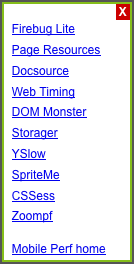
Now you can install the Mobile Perf bookmarket and get access to a variety of other bookmarklets through a simple popup menu. One stop shopping for bookmarklets! This works equally well in desktop browsers, but it’s especially helpful on mobile where setting up bookmarklets is more time-consuming. (Checkout the step-by-step mobile installation instructions – quite a bit more complex than a simple drag-and-drop.)
You can see screenshots of each bookmarklet on the Mobile Perf bookmarket home page. As usual I could use help with the UI. (You can see mobileperfbkm.js and pageresources.js, so just send me patches.) Certainly send me bugs and suggestions for other bookmarklets you think should be added. Before sending a suggestion please test it on some mobile devices and make sure it works well.
Next I’ll be analyzing a bunch of websites and seeing if I can find some core issues. Plus I’ll be enhancing these tools and trying pcapperf with my new 13″ MackBook Air to generate HTTP waterfall charts and Page Speed reports.
Twitter vs blogging
My rate of blogging has dropped dramatically since I saw how @dalmaer was able to get so much news out via Twitter. I was slow to adopt Twitter, but now I love it. If you follow my blog but aren’t following me on Twitter, you should start following me: @souders. Here are some of the important tweets I’ve made in the last few days:
- IE 9 Beta is now available in http://WebPagetest.org – let’s hear it for @patmeenan!
- IE blog about need realistic benchmarks http://bit.ly/a3WR1c; Mozilla announces “Kraken focuses on realistic workloads” http://bit.ly/9wMGYn
- VCs tend to back companies with fast web sites (via @joshuabixby) – http://bit.ly/aLXaIf
- Do you use <meta name=”viewport” content=”width=device-width”> in your mobile web app? You should (via @ppk). http://bit.ly/9IuhzT
- Browserscope shows IE9 beta’s network behavior is improved. I’m surprised scripts & images can’t download in parallel. http://bit.ly/dpileW
- IE6 is now available on http://WebPagetest.org for Dulles, VA. Awesome work by Pat Meenan.
- Great survey of how YSlow score relates to page load time from Yottaa: http://blog.yottaa.com/2010/09/how-important-is-my-yslow-score/
- be careful using Web Inspector for performance analysis; JS execution can cause network events to be mistimed; Speed Tracer has same problem
- Had to file a FF bug and forgot the URL. Then remembered this Browser Resources page from Browserscope: http://www.browserscope.org/browsers
- About to start the first meeting of the W3C Web Performance Working Group: http://www.w3.org/2010/webperf/
You get the idea. I won’t do this blog-retweeting again, but if you care about web performance I hope you’ll follow me on Twitter.
WebPagetest.org and Page Speed
Pat Meenan just blogged about Page Speed results now available in Webpagetest. This is a great step toward greater consistency in the world of web performance, something that benefits developers and ultimately benefits web users.
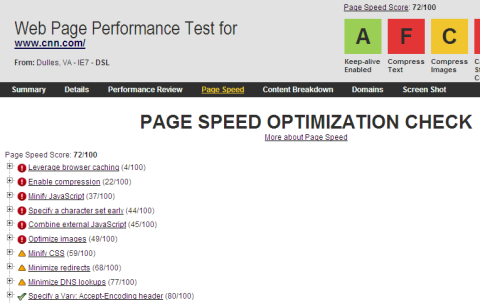
I’ve been spreading the meme about WPO – the industry emerging around web performance optimization. I contend that in the early evolution of a new technology industry it’s better to strive for standardization and worry about differentiation later once the technology movement is well established.
One area where WPO needs more standardization is performance analysis. There are numerous performance analysis tools available, including Page Speed, YSlow, AOL Pagetest, MSFast, VRTA, and neXpert. There’s some commonality across these tools, but the differences are what’s noticeable. To get a thorough performance scrubbing, web developers have no choice but to run multiple tools and sift through the different results trying to find the most important recommendations. It would be better for developers to have a more standard way of analyzing performance across environments.
The Page Speed SDK provides a path to achieve this. When it was released, I easily stood up a web page that produces a Page Speed performance analysis from HAR files. Today, Pat has integrated the same SDK into WebPagetest.org. With wider adoption of the Page Speed SDK, we’re moving to having a more consistent performance analysis regardless of what browser and development environment you work in.