
Prebrowsing
 A favorite character from the MASH TV series is Corporal Walter Eugene O’Reilly, fondly referred to as “Radar” for his knack of anticipating events before they happen. Radar was a rare example of efficiency because he was able to carry out Lt. Col. Blake’s wishes before Blake had even issued the orders.
What if the browser could do the same thing? What if it anticipated the requests the user was going to need, and could complete those requests ahead of time? If this was possible, the performance impact would be significant. Even if just the few critical resources needed were already downloaded, pages would render much faster.
Browser cache isn’t enough
You might ask, “isn’t this what the cache is for?” Yes! In many cases when you visit a website the browser avoids making costly HTTP requests and just reads the necessary resources from disk cache. But there are many situations when the cache offers no help:
- first visit – The cache only comes into play on subsequent visits to a site. The first time you visit a site it hasn’t had time to cache any resources.
- cleared – The cache gets cleared more than you think. In addition to occasional clearing by the user, the cache can also be cleared by anti-virus software and browser bugs. (19% of Chrome users have their cache cleared at least once a week due to a bug.)
- purged – Since the cache is shared by every website the user visits, it’s possible for one website’s resources to get purged from the cache to make room for another’s.
- expired – 69% of resources don’t have any caching headers or are cacheable for less than one day. If the user revisits these pages and the browser determines the resource is expired, an HTTP request is needed to check for updates. Even if the response indicates the cached resource is still valid, these network delays still make pages load more slowly, especially on mobile.
- revved – Even if the website’s resources are in the cache from a previous visit, the website might have changed and uses different resources.
Something more is needed.
Prebrowsing techniques
In their quest to make websites faster, today’s browsers offer a number of features for doing work ahead of time. These “prebrowsing” (short for “predictive browsing” – a word I made up and a domain I own) techniques include:
<link rel="dns-prefetch" ...><link rel="prefetch" ...><link rel="prerender" ...>- DNS pre-resolution
- TCP pre-connect
- prefreshing
- the preloader
These features come into play at different times while navigating web pages. I break them into these three phases:
- previous page – If a web developer has high confidence about which page you’ll go to next, they can use LINK REL dns-prefetch, prefetch or prerender on the previous page to finish some work needed for the next page.
- transition – Once you navigate away from the previous page there’s a transition period after the previous page is unloaded but before the first byte of the next page arrives. During this time the web developer doesn’t have any control, but the browser can work in anticipation of the next page by doing DNS pre-resolution and TCP pre-connects, and perhaps even prefreshing resources.
- current page – As the current page is loading, browsers have a preloader that scans the HTML for downloads that can be started before they’re needed.
Let’s look at each of the prebrowsing techniques in the context of each phase.
Phase 1 – Previous page
As with any of this anticipatory work, there’s a risk that the prediction is wrong. If the anticipatory work is expensive (e.g., steals CPU from other processes, consumes battery, or wastes bandwidth) then caution is warranted. It would seem difficult to anticipate which page users will go to next, but high confidence scenarios do exist:
- If the user has done a search with an obvious result, that result page is likely to be loaded next.
- If the user navigated to a login page, the logged-in page is probably coming next.
- If the user is reading a multi-page article or paginated set of results, the page after the current page is likely to be next.
Let’s take the example of searching for Adventure Time to illustrate how different prebrowsing techniques can be used.
DNS-PREFETCH
If the user searched for Adventure Time then it’s likely the user will click on the result for Cartoon Network, in which case we can prefetch the DNS like this:
<link rel="dns-prefetch" href="//cartoonnetwork.com">
DNS lookups are very low cost – they only send a few hundred bytes over the network – so there’s not a lot of risk. But the upside can be significant. This study from 2008 showed a median DNS lookup time of ~87 ms and a 90th percentile of ~539 ms. DNS resolutions might be faster now. You can see your own DNS lookup times by going to chrome://histograms/DNS (in Chrome) and searching for the DNS.PrefetchResolution histogram. Across 1325 samples my median is 50 ms with an average of 236 ms – ouch!
In addition to resolving the DNS lookup, some browsers may go one step further and establish a TCP connection. In summary, using dns-prefetch can save a lot of time, especially for redirects and on mobile.
PREFETCH
If we’re more confident that the user will navigate to the Adventure Time page and we know some of its critical resources, we can download those resources early using prefetch:
<link rel="prefetch" href="http://cartoonnetwork.com/utils.js">
This is great, but the spec is vague, so it’s not surprising that browser implementations behave differently. For example,
- Firefox downloads just one prefetch item at a time, while Chrome prefetches up to ten resources in parallel.
- Android browser, Firefox, and Firefox mobile start prefetch requests after window.onload, but Chrome and Opera start them immediately possibly stealing TCP connections from more important resources needed for the current page.
- An unexpected behavior is that all the browsers that support prefetch cancel the request when the user transitions to the next page. This is strange because the purpose of prefetch is to get resources for the next page, but there might often not be enough time to download the entire response. Canceling the request means the browser has to start over when the user navigates to the expected page. A possible workaround is to add the “Accept-Ranges: bytes” header so that browsers can resume the request from where it left off.
It’s best to prefetch the most important resources in the page: scripts, stylesheets, and fonts. Only prefetch resources that are cacheable – which means that you probably should avoid prefetching HTML responses.
PRERENDER
If we’re really confident the user is going to the Adventure Time page next, we can prerender the page like this:
<link rel="prerender" href="http://cartoonnetwork.com/">
This is like opening the URL in a hidden tab – all the resources are downloaded, the DOM is created, the page is laid out, the CSS is applied, the JavaScript is executed, etc. If the user navigates to the specified href, then the hidden page is swapped into view making it appear to load instantly. Google Search has had this feature for years under the name Instant Pages. Microsoft recently announced they’re going to similarly use prerender in Bing on IE11.
Many pages use JavaScript for ads, analytics, and DHTML behavior (start a slideshow, play a video) that don’t make sense when the page is hidden. Website owners can workaround this issue by using the page visibility API to only execute that JavaScript once the page is visible.
Support for dns-prefetch, prefetch, and prerender is currently pretty spotty. The following table shows the results crowdsourced from my prebrowsing tests. You can see the full results here. Just as the IE team announced upcoming support for prerender, I hope other browsers will see the value of these features and add support as well.
| dns-prefetch | prefetch | prerender | |
|---|---|---|---|
| Android 4 | 4 | ||
| Chrome | 22+ | 31+1 | 22+ |
| Chrome Mobile | 29+ | ||
| Firefox | 22+2 | 23+2 | |
| Firefox Mobile | 24+ | 24+ | |
| IE | 113 | 113 | 113 |
| Opera | 15+ |
- 1 Need to use the
--prerender=enabledcommandline option. - 2 My friend at Mozilla said these features have been present since version 12.
- 3 This is based on a Bing blog post. It has not been tested.
Ilya Grigorik‘s High Performance Networking in Google Chrome is a fantastic source of information on these techniques, including many examples of how to see them in action in Chrome.
Phase 2 – Transition
When the user clicks a link the browser requests the next page’s HTML document. At this point the browser has to wait for the first byte to arrive before it can start processing the next page. The time-to-first-byte (TTFB) is fairly long – data from the HTTP Archive in BigQuery indicate a median TTFB of 561 ms and a 90th percentile of 1615 ms.
During this “transition” phase the browser is presumably idle – twiddling its thumbs waiting for the first byte of the next page. But that’s not so! Browser developers realized that this transition time is a HUGE window of opportunity for performance prebrowsing optimizations. Once the browser starts requesting a page, it doesn’t have to wait for that page to arrive to start working. Just like Radar, the browser can anticipate what will need to be done next and can start that work ahead of time.
DNS pre-resolution & TCP pre-connect
The browser doesn’t have a lot of context to go on – all it knows is the URL being requested, but that’s enough to do DNS pre-resolution and TCP pre-connect. Browsers can reference prior browsing history to find clues about the DNS and TCP work that’ll likely be needed. For example, suppose the user is navigating to http://cartoonnetwork.com/. From previous history the browser can remember what other domains were used by resources in that page. You can see this information in Chrome at chrome://dns. My history shows the following domains were seen previously:
- ads.cartoonnetwork.com
- gdyn.cartoonnetwork.com
- i.cdn.turner.com
During this transition (while it’s waiting for the first byte of Cartoon Network’s HTML document to arrive) the browser can resolve these DNS lookups. This is a low cost exercise that has significant payoffs as we saw in the earlier dns-prefetch discussion.
If the confidence is high enough, the browser can go a step further and establish a TCP connection (or two) for each domain. This will save time when the HTML document finally arrives and requires page resources. The Subresource PreConnects column in chrome://dns indicates when this occurs. For more information about dns-presolution and tcp-preconnect see DNS Prefetching.
Prefresh
Similar to the progression from LINK REL dns-prefetch to prefetch, the browser can progress from DNS lookups to actual fetching of resources that are likely to be needed by the page. The determination of which resources to fetch is based on prior browsing history, similar to what is done in DNS pre-resolution. This is implemented as an experimental feature in Chrome called “prefresh” that can be turned on using the --speculative-resource-prefetching="enabled" flag. You can see the resources that are predicted to be needed for a given URL by going to chrome://predictors and clicking on the Resource Prefetch Predictor tab.
The resource history records which resources were downloaded in previous visits to the same URL, how often the resource was hit as well as missed, and a score for the likelihood that the resource will be needed again. Based on these scores the browser can start downloading critical resources while it’s waiting for the first byte of the HTML document to arrive. Prefreshed resources are thus immediately available when the HTML needs them without the delays to fetch, read, and preprocess them. The implementation of prefresh is still evolving and being tested, but it holds potential to be another prebrowsing timesaver that can be utilized during the transition phase.
Phase 3 – Current Page
Once the current page starts loading there’s not much opportunity to do prebrowsing – the user has already arrived at their destination. However, given that the average page takes 6+ seconds to load, there is a benefit in finding all the necessary resources as early as possible and downloading them in a prioritized order. This is the role of the preloader.
Most of today’s browsers utilize a preloader – also called a lookahead parser or speculative parser. The preloader is, in my opinion, the most important browser performance optimization ever made. One study found that the preloader alone improved page load times by ~20%. The invention of preloaders was in response to the old browser behavior where scripts were downloaded one-at-a-time in daisy chain fashion.
Starting with IE 8, parsing the HTML document was modified such that it forked when an external SCRIPT SRC tag was hit: the main parser is blocked waiting for the script to download and execute, but the lookahead parser continues parsing the HTML only looking for tags that might generate HTTP requests (IMG, SCRIPT, LINK, IFRAME, etc.). The lookahead parser queues these requests resulting in a high degree of parallelized downloads. Given that the average web page today has 17 external scripts, you can imagine what page load times would be like if they were downloaded sequentially. Being able to download scripts and other requests in parallel results in much faster pages.
The preloader has changed the logic of how and when resources are requested. These changes can be summarized by the goal of loading critical resources (scripts and stylesheets) early while loading less critical resources (images) later. This simple goal can produce some surprising results that web developers should keep in mind. For example:
- JS responsive images get queued last – I’ve seen pages that had critical (bigger) images that were loaded using a JavaScript responsive images technique, while less critical (smaller) images were loaded using a normal IMG tag. Most of the time I see these images being downloaded from the same domain. The preloader looks ahead for IMG tags, sees all the less critical images, and adds those to the download queue for that domain. Later (after DOMContentLoaded) the JavaScript responsive images technique kicks in and adds the more critical images to the download queue – behind the less critical images! This is often not the expected nor desired behavior.
- scripts “at the bottom” get loaded “at the top” – A rule I promoted starting in 2007 is to move scripts to the bottom of the page. In the days before preloaders this would ensure that all the requests higher in the page, including images, got downloaded first – a good thing when the scripts weren’t needed to render the page. But most preloaders give scripts a higher priority than images. This can result in a script at the bottom stealing a TCP connection from an image higher in the page causing above-the-fold rendering to take longer.
When it comes to the preloader the bottomline is that the preloader is a fantastic performance optimization for browsers, but the logic is new and still evolving so web developers should be aware of how the preloader works and watch their pages for any unexpected download behavior.
As the low hanging fruit of web performance optimization is harvested, we have to look harder to find the next big wins. Prebrowsing is an area that holds a lot of potential to deliver pages instantly. Web developers and browser developers have the tools at their disposal and some are taking advantage of them to create these instant experiences. I hope we’ll see even wider browser support for these prebrowsing features, as well as wider adoption by web developers.
[Here are the slides and video of my Prebrowsing talk from Velocity New York 2013.]
Frontend SPOF
My evangelism of high performance web sites started off in the context of quality code and development best practices. It’s easy for a style of coding to permeate throughout a company. Developers switch teams. Code is copied and pasted (especially in the world of web development). If everyone is developing in a high performance way, that’s the style that will characterize how the company codes.
This argument of promoting development best practices gained traction in the engineering quarters of the companies I talked to, but performance improvements continued to get backburnered in favor of new features and content that appealed to the business side of the organization. Improving performance wasn’t considered as important as other changes. Everyone assumed users wanted new features and that’s what got the most attention.
It became clear to me that we needed to show a business case for web performance. That’s why the theme for Velocity 2009 was “the impact of performance on the bottom line”. Since then there have been numerous studies released that have shown that improving performance does improve the bottom line. As a result, I’m seeing the business side of many web companies becoming strong advocates for Web Performance Optimization.
But there are still occasions when I have a hard time convincing a team that focusing on web performance, specifically frontend performance, is important. Shaving off hundreds (or even thousands) of milliseconds just doesn’t seem worthwhile to them. That’s when I pull out the big guns and explain that loading scripts and stylesheets in the typical way creates a frontend single point of failure that can bring down the entire site.
Examples of Frontend SPOF
The thought that simply adding a script or stylesheet to your web page could make the entire site unavailable surprises many people. Rather than focusing on CSS mistakes and JavaScript errors, the key is to think about what happens when a resource request times out. With this clue, it’s easy to create a test case:
<html>
<head>
<script src="http://www.snippet.com/main.js" type="text/javascript">
  </script>
</head>
<body>
Here's my page!
</body>
</html>
This HTML page looks pretty normal, but if snippet.com is overloaded the entire page is blank waiting for main.js to return. This is true in all browsers.
Here are some examples of frontend single points of failure and the browsers they impact. You can click on the Frontend SPOF test links to see the actual test page.
| Frontend SPOF test | Chrome | Firefox | IE | Opera | Safari |
|---|---|---|---|---|---|
| External Script | blank below | blank below | blank below | blank below | blank below |
| Stylesheet | flash | flash | blank below | flash | blank below |
| inlined @font-face | delayed | flash | flash | flash | delayed |
| Stylesheet with @font-face | delayed | flash | totally blank* | flash | delayed |
| Script then @font-face | delayed | flash | totally blank* | flash | delayed |
* Internet Explorer 9 does not display a blank page, but does “flash” the element.
The failure cases are highlighted in red. Here are the four possible outcomes sorted from worst to best:
- totally blank – Nothing in the page is rendered – the entire page is blank.
- blank below – All the DOM elements below the resource in question are not rendered.
- delayed – Text that uses the @font-face style is invisible until the font file arrives.
- flash – DOM elements are rendered immediately, and then redrawn if necessary after the stylesheet or font has finished downloading.
Web Performance avoids SPOF
It turns out that there are web performance best practices that, in addition to making your pages faster, also avoid most of these frontend single points of failure. Let’s look at the tests one by one.
- External ScriptÂ
- All browsers block rendering of elements below an external script until the script arrives and is parsed and executed. Since many sites put scripts in the HEAD, this means the entire page is typically blank. That’s why I believe the most important web performance coding pattern for today’s web sites is to load JavaScript asynchronously. Not only does this improve performance, but it avoids making external scripts a possible SPOF.Â
- StylesheetÂ
- Browsers are split on how they handle stylesheets. Firefox and Opera charge ahead and render the page, and then flash the user if elements have to be redrawn because their styling changed. Chrome, Internet Explorer, and Safari delay rendering the page until the stylesheets have arrived. (Generally they only delay rendering elements below the stylesheet, but in some cases IE will delay rendering everything in the page.) If rendering is blocked and the stylesheet takes a long time to download, or times out, the user is left staring at a blank page. There’s not a lot of advice on loading stylesheets without blocking page rendering, primarily because it would introduce the flash of unstyled content.
- inlined @font-faceÂ
- I’ve blogged before about the performance implications of using @font-face. When the @font-face style is declared in a STYLE block in the HTML document, the SPOF issues are dramatically reduced. Firefox, Internet Explorer, and Opera avoid making these custom font files a SPOF by rendering the affected text and then redrawing it after the font file arrives. Chrome and Safari don’t render the customized text at all until the font file arrives. I’ve drawn these cells in yellow since it could cause the page to be unusable for users using these browsers, but most sites only use custom fonts on a subset of the page.
- Stylesheet with @font-faceÂ
- Inlining your @font-face style is the key to avoiding having font files be a single point of failure. If you inline your @font-face styles and the font file takes forever to return or times out, the worst case is the affected text is invisible in Chrome and Safari. But at least the rest of the page is visible, and everything is visible in Firefox, IE, and Opera. Moving the @font-face style to a stylesheet not only slows down your site (by requiring two sequential downloads to render text), but it also creates a special case in Internet Explorer 7 & 8 where the entire page is blocked from rendering. IE 6 is only slightly better – the elements below the stylesheet are blocked from rendering (but if your stylesheet is in the HEAD this is the same outcome).
- Script then @font-faceÂ
- Inlining your @font-face style isn’t enough to avoid the entire page SPOF that occurs in IE. You also have to make sure the inline STYLE block isn’t preceded by a SCRIPT tag. Otherwise, your entire page is blank in IE waiting for the font file to arrive. If that file is slow to return, your users are left staring at a blank page.
SPOF is bad
Five years ago most of the attention on web performance was focused on the backend. Since then we’ve learned that 80% of the time users wait for a web page to load is the responsibility of the frontend. I feel this same bias when it comes to identifying and guarding against single points of failure that can bring down a web site – the focus is on the backend and there’s not enough focus on the frontend. For larger web sites, the days of a single server, single router, single data center, and other backend SPOFs are way behind us. And yet, most major web sites include scripts and stylesheets in the typical way that creates a frontend SPOF. Even more worrisome – many of these scripts are from third parties for social widgets, web analytics, and ads.
Look at the scripts, stylesheets, and font files in your web page from a worst case scenario perspective. Ask yourself:
- Is your web site’s availability dependent on these resources?
- Is it possible that if one of these resources timed out, users would be blocked from seeing your site?
- Are any of these single point of failure resources from a third party?
- Would you rather embed resources in a way that avoids making them a frontend SPOF?
Make sure you’re aware of your frontend SPOFs, track their availability and latency closely, and embed them in your page in a non-blocking way whenever possible.
Browser Performance Wishlist
What are the most important changes browsers could make to improve performance?
This document is my answer to that question. This is mainly for browser developers, although web developers will want to track the adoption of these improvements.
- download scripts without blocking
- SCRIPT attributes
- resource packages
- border-radius
- cache redirects
- link prefetch
- Web Timing spec
- remote JS debugging
- Web Sockets
- History
- anchor ping
- progressive XHR
- stylesheet & inline JS
- SCRIPT DEFER for inline scripts
- @import improvements
- @font-face improvements
- stylesheets & iframes
- paint events
- missing schema, double downloads
Before digging into the list I wanted to mention two items that would actually be at the top of the list if it wasn’t for how new they are: SPDY and FRAG tag. Both of these require industry adoption and possible changes to specifications, so it’s too soon to put them on an implementation wishlist. I hope these ideas gain consensus soon and to facilitate that I describe them here.
- SPDY


- SPDY is a proposal from Google for making three major improvements to HTTP: compressed headers, multiplexed requests, and prioritized responses. Initial studies showed 25 top sites were loaded 55% faster. Server and client implementations are available, and some other organizations and individuals have completed server and client implementations. The protocol draft has been published for review.
- FRAG tag
- The idea behind this “document fragment” tag is that it be used to wrap 3rd party content – ads, widgets, and analytics. 3rd party content can have a severe impact on the containing page’s performance due to additional HTTP requests, scripts that block rendering and downloads, and added DOM nodes. Many of these factors can be mitigated by putting the 3rd party content inside an iframe embedded in the top level HTML document. But iframes have constraints and drawbacks – they typically introduce another HTTP request for the iframe’s HTML document, not all 3rd party code snippets will work inside an iframe without changes (e.g., references to “document” in JavaScript might need to reference the parent document), and some snippets (expando ads, suggest) can’t float over the main page’s elements. Another path to mitigate these issues is to load the JavaScript asynchronously, but many of these widgets use document.write and so must be evaluated synchronously.A compromise is to place 3rd party content in the top level HTML document wrapped in a FRAG block. This approach degrades nicely – older browsers would ignore the FRAG tag and handle these snippets the same way they do today. Newer browsers would parse the HTML in a separate document fragment. The FRAG content would not block the rendering of the top level document. Snippets containing document.write would work without blocking the top level document. This idea just started getting discussed in January 2010. Much more use case analysis and discussion is needed, culminating in a proposed specification. (Credit to Alex Russell for the idea and name.)
The List
The performance wishlist items are sorted highest priority first. The browser icons indicate which browsers need to implement that particular improvement.
- download scripts without blocking
- In older browsers, once a script started downloading all subsequent downloads were blocked until the script returned. It’s critical that scripts be evaluated in the order specified, but they can be downloaded in parallel. This has a significant improvement on page load times, especially for pages with multiple scripts. Newer browsers (IE8, Firefox 3.5+, Safari 4, Chrome 2+) incorporated this parallel script loading feature, but it doesn’t work as proactively as it could. Specifically:
- IE8 – downloading scripts blocks image and iframe downloads
- Firefox 3.6 – downloading scripts blocks iframe downloads
- Safari 4 – downloading scripts blocks iframe downloads
- Chrome 4 – downloading scripts blocks iframe downloads
- Opera 10.10 – downloading scripts blocks all downloads
(test case, see the four “|| Script [Script|Stylesheet|Image|Iframe]” tests)
- SCRIPT attributes
- The HTML5 specification describes the ASYNC and DEFER attributesfor the SCRIPT tag, but the implementation behavior is not specified. Here’s how the SCRIPT attributes should work.
- DEFER – The HTTP request for a SCRIPT with the DEFER attribute is not made until all other resources in the page on the same domain have already been sent. This is so that it doesn’t occupy one of the limited number of connections that are opened for a single server. Deferred scripts are downloaded in parallel, but are executed in the order they occur in the HTML document, regardless of what order the responses arrive in. The window’s onload event fires after all deferred scripts are downloaded and executed.
- ASYNC – The HTTP request for a SCRIPT with the ASYNC attribute is made immediately. Async scripts are executed as soon as the response is received, regardless of the order they occur in the HTML document. The window’s onload event fires after all async scripts are downloaded and executed.
- POSTONLOAD – This is a new attribute I’m proposing. Postonload scripts don’t start downloading until after the window’s onload event has fired. By default, postonload scripts are evaluated in the order they occur in the HTML document. POSTONLOAD and ASYNC can be used in combination to cause postonload scripts to be evaluated as soon as the response is received, regardless of the order they occur in the HTML document.
- resource packages
- Each HTTP request has some overhead cost. Workarounds include concatenating scripts, concatenating stylesheets, and creating image sprites. But this still results in multiple HTTP requests. And sprites are especially difficult to create and maintain. Alexander Limi (Mozilla) has proposed using zip files to create resource packages. It’s a good idea because of its simplicity and graceful degradation.
- border-radius
- Creating rounded corners leads to code bloat and excessive HTTP requests. Border-radius reduces this to a simple CSS style. The only major browser that doesn’t support border-radius is IE. It has already been announced that IE9 will support border-radius, but I wanted to include it nevertheless.
- cache redirects
- Redirects are costly from a performance perspective, especially for users with high latency. Although the HTTP specsays 301 and 302 responses (with the proper HTTP headers) are cacheable, most browsers don’t support this.
- IE8 – doesn’t cache redirects for the main page and for resources
- Safari 4 – doesn’t cache redirects for the main page
- Opera 10.10 – doesn’t cache redirects for the main page
- link prefetch
- To improve page load times, developers prefetch resources that are likely or certain to be used later in the user’s session. This typically involves writing JavaScript code that executes after the onload event. When prefetching scripts and stylesheets, an iframe must be used to avoid conflict with the JavaScript and CSS in the main page. Using an iframe makes this prefetching code more complex. A final burden is the processing required to parse prefetched scripts and stylesheets. The browser UI can freeze while prefetched scripts and stylesheets are parsed, even though this is unnecessary as they’re not going to be used in the current page. A simple alternative solution is to use LINK PREFETCH. Firefox is the only major browser that supports this feature (since 1.0). Wider support of LINK PREFETCH would give developers an easy way to accelerate their web pages. (test case)
- Web Timing spec
- In order for web developers to improve the performance of their web sites, they need to be able to measure their performance – specifically their page load times. There’s debate on the endpoint for measuring page load times (window onload event, first paint event, onDomReady), but most people agree that the starting point is when the web page is requested by the user. And yet, there is no reliable way for the owner of the web page to measure from this starting point. Google has submitted the Web Timing proposal draft for browser builtin support for measuring page load times to address these issues.
- remote JS debugging
- Developers strive to make their web apps fast across all major browsers, but this requires installing and learning a different toolset for each browser. In order to get cross-browser web development tools, browsers need to support remote JavaScript debugging. There’s been progress in building protocols to support remote debugging: WebDebugProtocol and Crossfire in Firefox, Scope in Opera, and ChromeDevTools in Chrome. Agreement on the preferred protocol and support in the major browsers would go a long way to getting faster web apps for all users, and reducing the work for developers to maintain cross-browser web app performance.
- Web Sockets
- HTML5 Web Sockets provide built-in support for two-way communications between the client and server. The communication channel is accessible via JavaScript. Web Sockets are superior to comet and Ajax, especially in their compatibility with proxies and firewalls, and provide a path for building web apps with a high degree of communication between the browser and server.
- History
- HTML5 specifies implementation for History.pushState and History.replaceState. With these, web developers can dynamically change the URL to reflect the web application state without having to perform a page transition. This is important for Web 2.0 applications that modify the state of the web page using Ajax. Being able to avoid fetching a new HTML document to reflect these application changes results in a faster user experience.
- anchor ping
- The ping attribute for anchors provides a more performant way to track links. This is a controversial feature because of the association with “tracking” users. However, links are tracked today, it’s just done in a way that hurts the user experience. For example, redirects, synchronous XHR, and tight loops in unload handlers are some of the techniques used to ensure clicks are properly recorded. All of these create a slower user experience.
- progressive XHR
- The draft spec for XMLHttpRequest details how XHRs are to support progressive response handling. This is important for web apps that use data with varied response times as well as comet-style applications. (more information)
- stylesheet & inline JS
- When a stylesheet is followed by an inline script, resources that follow are blocked until the stylesheet is downloaded and the inline script is evaluated. Browsers should instead lookahead in their parsing and start downloading subsequent resources in parallel with the stylesheet. These resources of course would not be rendered, parsed, or evaluated until after the stylesheet was parsed and the inline script was evaluated. (test case see “|| CSS + Inline Script”; looks like this just landed in Firefox 3.6!)
- SCRIPT DEFER for inline scripts
- The benefit of the SCRIPT DEFER attribute for external scripts is discussed above. But DEFER is also useful for inline scripts that can be executed after the page has been parsed. Currently, IE8 supports this behavior. (test case)
- @import improvements
- @import is a popular alternative to the LINK tag for loading stylesheets, but it has several performance problems in IE:
- LINK @import – If the first stylesheet is loaded using LINK and the second one uses @import, they are loaded sequentially instead of in parallel. (test case)
- LINK blocks @import – If the first stylesheet is loaded using LINK, and the second stylesheet is loaded using LINK that contains @import, that @import stylesheet is blocked from downloading until the first stylesheet response is received. It would be better to start downloading the @import stylesheet immediately. (test case)
- many @imports – Using @import can change the download sequence of resources. In this test case, multiple stylesheets loaded with @import are followed by a script. Even though the script is listed last in the HTML document, it gets downloaded first. If the script takes a long time to download, it can causes the stylesheet downloads to be delayed, which can cause rendering to be delayed. It would be better to follow the order specified in the HTML document. (test case)
- @font-face improvements
- In IE8, if a script occurs before a style that uses @font-face, the page is blocked from rendering until the font file is done downloading. It would be better to render the rest of the page without waiting for the font file. (test case, blog post)
- stylesheets & iframes
- When an iframe is preceded by an external stylesheet, it blocks iframe downloads. In IE, the iframe is blocked from downloading until the stylesheet response is received. In Firefox, the iframe’s resources are blocked from downloading until the stylesheet response is received. There’s no dependency between the parent’s stylesheet and the iframe’s HTML document, so this blocking behavior should be removed. (test case)
- paint events
- As the amount of DOM elements and CSS grows, it’s becoming more important to be able to measure the performance of painting the page. Firefox 3.5 added the MozAfterPaint event which opened the door for add-ons like Firebug Paint Events (although early Firefox documentation noted that the “event might fire before the actual repainting happens“). Support for accurate paint events will allow developers to capture these metrics.
- missing schema, double downloads
- In IE7&8, if the “http:” schema is missing from a stylesheet’s URL, the stylesheet is downloaded twice. This makes the page render more slowly. Not including “http://” in URLs is not pervasive, but it’s getting more widely adopted because it reduces download size and resolves to “http://” or “https://” as appropriate. (test case)
5e speculative background images
This is the fifth of five quick posts about some browser quirks that have come up in the last few weeks.
Chrome and Safari start downloading background images before all styles are available. If a background image style gets overwritten this may cause wasteful downloads.
Background images are used everywhere: buttons, background wallpaper, rounded corners, etc. You specify a background image in CSS like so:
.bgimage { background-image: url("/images/button1.gif"); }
Downloading resources is an area for optimizing performance, so it’s important to understand what causes CSS background images to get downloaded. See if you can answer the following questions about button1.gif:
- Suppose no elements in the page use the class “bgimage”. Is button1.gif downloaded?
- Suppose an element in the page has the class “bgimage” but also has “display: none” or “visibility: hidden”. Is button1.gif downloaded?
- Suppose later in the page a stylesheet gets downloaded and redefines the “bgimage” class like this:
.bgimage { background-image: url("/images/button2.gif"); }Is button1.gif downloaded?
Ready?
The answer to question #1 is “no”. If no elements in the page use the rule, then the background image is not downloaded. This is true in all browsers that I’ve tested.
The answer to question #2 is “depends on the browser”. This might be surprising. Firefox 3.6 and Opera 10.10 do not download button1.gif, but the background image is downloaded in IE 8, Safari 4, and Chrome 4. I don’t have an explanation for this, but I do have a test page: hidden background images. If you have elements with background images that are hidden initially, you should hold off on creating them until after the visible content in the page is rendered.
The answer to question #3 is “depends on the browser”. I find this to be the most interesting behavior to investigate. According to the cascading behavior of CSS, the latter definition of the “bgimage” class should cause the background-image style to use button2.gif. And in all the major browsers this is exactly what happens. But Safari 4 and Chrome 4 are a little more aggressive about fetching background images. They download button1.gif on the speculation that the background-image property won’t be overwritten, and then later download button2.gif when it is overwritten. Here’s the test page: speculative background images.
When my officemate, Steve Lamm, pointed out this behavior to me, my first reaction was “that’s wasteful!” I love prefetching, but I’m not a big fan of most prefetching implementations because they’re too aggressive – they err too far on the side of downloading resources that never get used. After my initial reaction, I thought about this some more. How frequently would this speculative background image downloading be wasteful? I went on a search and couldn’t find any popular web site that overwrote the background-image style. Not one. I’m not saying pages like this don’t exist, I’m just saying it’s very atypical.
On the other hand, this speculative downloading of background images can really help performance and the user’s perception of page speed. Many web sites have multiple stylesheets. If background images don’t start downloading until all stylesheets are done loading, the page takes longer to render. Safari and Chrome’s behavior of downloading a background image as soon as an element needs it, even if one or more stylesheets are still downloading, is a nice performance optimization.
That’s a nice way to finish the week. Next week: my Browser Performance Wishlist.
The five posts in this series are:
5d dynamic stylesheets
This is the fourth of five quick posts about some browser quirks that have come up in the last few weeks.
You can avoid blocking rendering in IE if you load stylesheets using DHTML and setTimeout.
A few weeks ago I had a meeting with a company that makes a popular widget. One technique they used to reduce their widget’s impact on the main page was to load a stylesheet dynamically, something like this:
var link = document.createElement('link');
link.rel = 'stylesheet';
link.type = 'text/css';
link.href = '/main.css';
document.getElementsByTagName('head')[0].appendChild(link);
Most of my attention for the past year has been on loading scripts dynamically to avoid blocking downloads. I haven’t focused on loading stylesheets dynamically. When it comes to stylesheets, blocking downloads isn’t an issue – stylesheets don’t block downloads (except in Firefox 2.0). The thing to worry about when downloading stylesheets is that IE blocks rendering until all stylesheets are downloaded1, and other browsers might experience a Flash Of Unstyled Content (FOUC).
FOUC isn’t a concern for this widget – the rules in the dynamically-loaded stylesheet only apply to the widget, and the widget hasn’t been created yet so nothing can flash. If the point of loading the stylesheet dynamically is to not mess with the containing page, we have to make sure dynamic stylesheets don’t block the page from rendering in IE.
I created the DHTML stylesheet example to show what happens. The page loads a stylesheet dynamically. The stylesheet is configured to take 4 seconds to download. If you load the page in Internet Explorer the page is blank for 4 seconds. In order to decouple the stylesheet load from page rendering, the DHTML code has to be invoked using setTimeout. That’s what I do in the DHTML + setTimeout stylesheet test page. This works. The page renders immediately while the stylesheet is downloaded in the background.
This technique is applicable when you have stylesheets that you want to load in the page but the stylesheet’s rules don’t apply to any DOM elements in the page currently. This is a pretty small use case. It makes sense for widgets or pages that have DHTML features that aren’t invoked until after the page has loaded. If you find yourself in that situation, you can use this technique to avoid the blank white screen in IE.
The five posts in this series are:
- 5a Missing schema double download
- 5b document.write scripts block in Firefox
- 5c media=print stylesheets
- 5d dynamic stylesheets
- 5e speculative background images
| 1 | Simple test pages may not reproduce this problem. My testing shows that you need a script (inline or external) above the stylesheet, or two or more stylesheets for rendering to be blocked. If your page has only one stylesheet and no SCRIPT tags, you might not experience this issue. |
5c media=print stylesheets
This is the third of five quick posts about some browser quirks that have come up in the last few weeks.
Stylesheets set with media=”print” still block rendering in Internet Explorer.
A few weeks ago a friend at a top web company pinged me about a possible bug in Page Speed and YSlow. Both tools were complaining about stylesheets he placed at the bottom of his page, an obvious violation of my put stylesheets at the top rule from High Performance Web Sites. The reasoning behind this rule is that Internet Explorer won’t start rendering the page until all stylesheets are downloaded1, and other browsers might produce the Flash Of Unstyled Content (FOUC). It’s best to put stylesheets at the top so they get downloaded as soon as possible.
His reason for putting these stylesheets at the bottom was that they were specified with media="print". Since these stylesheets weren’t going to be used to render the current page, he wanted to load them last so that other more important resources could get downloaded sooner. Going back to the reasons for the “put stylesheets at the top” rule, he wouldn’t have to worry about FOUC (the stylesheets wouldn’t be applied to the current page). But would he have to worry about IE blocking the page from rendering? Time for a test page.
The media=print stylesheets test page contains one stylesheet at the bottom with media="print". This stylesheet is configured to take 4 seconds to download. If you view this page in Internet Explorer you’ll see that rendering is indeed blocked for 4 seconds (tested on IE 6, 7, & 8).
I’m surprised browsers haven’t gotten to the point where they skip downloading stylesheets for a different media type than the current one. I’ve asked some web devs but no one can think of a good reason for doing this. In the meantime, even if you have stylesheets with media="print" you might want to follow the advice of Page Speed and YSlow and put them in the document HEAD. Or you could try loading them dynamically. That’s the topic I’ll cover in my next blog post.
The five posts in this series are:
- 5a Missing schema double download
- 5b document.write scripts block in Firefox
- 5c media=print stylesheets
- 5d dynamic stylesheets
- 5e speculative background images
| 1 | Simple test pages may not reproduce this problem. My testing shows that you need a script (inline or external) above the stylesheet, or two or more stylesheets for rendering to be blocked. If your page has only one stylesheet and no SCRIPT tags, you might not experience this issue. |
5a Missing schema double download
This is the first of five quick posts about some browser quirks that have come up in the last few weeks.
Internet Explorer 7 & 8 will download stylesheets twice if the http(s) protocol is missing.
If you have an HTTPS page that loads resources with “http://” in the URL, IE halts the download and displays an error dialog. This is called mixed content and should be avoided. How should developers code their URLs to avoid this problem? You could do it on the backend in your HTML template language. But a practice that is getting wider adoption is protocol relative URLs.
A protocol relative URL doesn’t contain a protocol. For example,
https://stevesouders.com/images/book-84x110.jpgbecomes
//stevesouders.com/images/book-84x110.jpgBrowsers substitute the protocol of the page itself for the resource’s missing protocol. Problem solved! In fact, today’s HttpWatch Blog posted about this: Using Protocol Relative URLs to Switch between HTTP and HTTPS.
However, if you try this in Internet Explorer 7 and 8 you’ll see that stylesheets specified with a protocol relative URL are downloaded twice. Hard to believe, but true. My officemate, Steve Lamm, discovered this when looking at the new Nexus One Phone page. That page fetches a stylesheet like this:
<link type="text/css" rel="stylesheet" href="//www.google.com/phone/static/2496921881-SiteCss.css">Notice there’s no protocol. If you load this page in Internet Explorer 7 and 8 the waterfall chart (nicely generated by HttpWatch) looks like this:

Notice 2496921881-SiteCss.css is downloaded twice, and each time it’s a 200 response, so it’s not being read from cache.
It turns out this only happens with stylesheets. The Missing schema, double download test page I created contains a stylesheet, an image, and a script that all have protocol relative URLs pointing to 1.cuzillion.com. The stylesheet is downloaded twice, but the image and script are only downloaded once. I added another stylesheet from 2.cuzillion.com that has a full URL (i.e., it starts with “http:”). This stylesheet is only downloaded once.
Developers should avoid using protocol relative URLs for stylesheets if they want their pages to be as fast as possible in Internet Explorer 7 & 8.
The five posts in this series are:
Browser script loading roundup
How are browsers doing when it comes to parallel script loading?
Back in the days of IE7 and Firefox 2.0, no browser loaded scripts in parallel with other resources. Instead, these older browsers would block all subsequent resource requests until the script was received, parsed, and executed. Here’s how the HTTP requests look when this blocking occurs in older browsers:

The test page that generated this waterfall chart has six HTTP requests:
- the HTML document
- the 1st script – 2 seconds to download, 2 seconds to execute
- the 2nd script – 2 seconds to download, 2 seconds to execute
- an image – 1 second to download
- a stylesheet- 1 second to download
- an iframe – 1 second to download
The figure above shows how the scripts block each other and block the image, stylesheet, and iframe, as well. The image, stylesheet, and iframe download in parallel with each other, but not until the scripts are finished downloading sequentially.
The likely reason scripts were downloaded sequentially in older browsers was to preserve execution order. This is critical when code in the 2nd script depends on symbols defined in the 1st script. Preserving execution order avoids undefined symbol errors. But the missed opportunity is obvious – while the browser is downloading the first script and guaranteeing to execute it first, it could be downloading the other four resources in parallel.
Thankfully, newer browsers now load scripts in parallel!
This is a big win for today’s web apps that often contain 100K+ of JavaScript split across multiple files. Loading the same test page in IE8, Firefox 3.6, Chrome 4, and Safari 4 produces an HTTP waterfall chart like this:

Things look a lot better, but not as good as they should be. In this case, IE8 loads the two scripts and stylesheet in parallel, but the image and iframe are blocked. All of the newer browsers have similar limitations with regard to the extent to which they load scripts in parallel with other types of resources. This table from Browserscope shows where we are and the progress made to get to this point. The recently added “Compare” button added to Browserscope made it easy to generate this historical view.
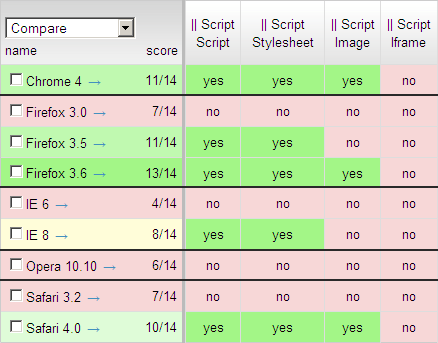
While downloading scripts, IE8 still blocks on images and iframes. Chrome 4, Firefox 3.6, and Safari 4 block on iframes. Opera 10.10 blocks on all resource types. I’m confident parallel script loading will continue to improve based on the great progress made in the last batch of browsers. Let’s keep our eyes on the next browsers to see if things improve even more.
Loading Scripts Without Blocking
This post is based on a chapter from Even Faster Web Sites, the follow-up to High Performance Web Sites. Posts in this series include: chapters and contributing authors, Splitting the Initial Payload, Loading Scripts Without Blocking, Coupling Asynchronous Scripts, Positioning Inline Scripts, Sharding Dominant Domains, Flushing the Document Early, Using Iframes Sparingly, and Simplifying CSS Selectors.
As more and more sites evolve into “Web 2.0” apps, the amount of JavaScript increases. This is a performance concern because scripts have a negative impact on page performance. Mainstream browsers (i.e., IE 6 and 7)Â block in two ways:
- Resources in the page are blocked from downloading if they are below the script.
- Elements are blocked from rendering if they are below the script.
The Scripts Block Downloads example demonstrates this. It contains two external scripts followed by an image, a stylesheet, and an iframe. The HTTP waterfall chart from loading this example in IE7 shows that the first script blocks all downloads, then the second script blocks all downloads, and finally the image, stylesheet, and iframe all download in parallel. Watching the page render, you’ll notice that the paragraph of text above the script renders immediately. However, the rest of the text in the HTML document is blocked from rendering until all the scripts are done loading.
Scripts block downloads in IE6&7, Firefox 2&3.0, Safari 3, Chrome 1, and Opera
Browsers are single threaded, so it’s understandable that while a script is executing the browser is unable to start other downloads. But there’s no reason that while the script is downloading the browser can’t start downloading other resources. And that’s exactly what newer browsers, including Internet Explorer 8, Safari 4, and Chrome 2, have done. The HTTP waterfall chart for the Scripts Block Downloads example in IE8 shows the scripts do indeed download in parallel, and the stylesheet is included in that parallel download. But the image and iframe are still blocked. Safari 4 and Chrome 2 behave in a similar way. Parallel downloading improves, but is still not as much as it could be.
Scripts still block, even in IE8, Safari 4, and Chrome 2
Fortunately, there are ways to get scripts to download without blocking any other resources in the page, even in older browsers. Unfortunately, it’s up to the web developer to do the heavy lifting.
There are six main techniques for downloading scripts without blocking:
- XHR Eval – Download the script via XHR and
eval()the responseText. - XHR Injection – Download the script via XHR and inject it into the page by creating a script element and setting its
textproperty to the responseText. - Script in Iframe – Wrap your script in an HTML page and download it as an iframe.
- Script DOM Element – Create a script element and set its
srcproperty to the script’s URL. - Script Defer – Add the script tag’s
deferattribute. This used to only work in IE, but is now in Firefox 3.1. document.writeScript Tag – Write the<script src="">HTML into the page usingdocument.write. This only loads script without blocking in IE.
You can see an example of each technique using Cuzillion. It turns out that these techniques have several important differences, as shown in the following table. Most of them provide parallel downloads, although Script Defer and document.write Script Tag are mixed. Some of the techniques can’t be used on cross-site scripts, and some require slight modifications to your existing scripts to get them to work. An area of differentiation that’s not widely discussed is whether the technique triggers the browser’s busy indicators (status bar, progress bar, tab icon, and cursor). If you’re loading multiple scripts that depend on each other, you’ll need a technique that preserves execution order.
| Technique | Parallel Downloads | Domains can Differ | Existing Scripts | Busy Indicators | Ensures Order | Size (bytes) |
|---|---|---|---|---|---|---|
| XHR Eval | IE, FF, Saf, Chr, Op | no | no | Saf, Chr | – | ~500 |
| XHR Injection | IE, FF, Saf, Chr, Op | no | yes | Saf, Chr | – | ~500 |
| Script in Iframe | IE, FF, Saf, Chr, Op | no | no | IE, FF, Saf, Chr | – | ~50 |
| Script DOM Element | IE, FF, Saf, Chr, Op | yes | yes | FF, Saf, Chr | FF, Op | ~200 |
| Script Defer | IE, Saf4, Chr2, FF3.1 | yes | yes | IE, FF, Saf, Chr, Op | IE, FF, Saf, Chr, Op | ~50 |
| document.write Script Tag | IE, Saf4, Chr2, Op | yes | yes | IE, FF, Saf, Chr, Op | IE, FF, Saf, Chr, Op | ~100 |
The question is: Which is the best technique? The optimal technique depends on your situation. This decision tree should be used as a guide. It’s not as complex as it looks. Only three variables determine the outcome: is the script on the same domain as the main page, is it necessary to preserve execution order, and should the busy indicators be triggered.

Ideally, the logic in this decision tree would be encapsulated in popular HTML templating languages (PHP, Python, Perl, etc.) so that the web developer could just call a function and be assured that their script gets loaded using the optimal technique.
In many situations, the Script DOM Element is a good choice. It works in all browsers, doesn’t have any cross-site scripting restrictions, is fairly simple to implement, and is well understood. The one catch is that it doesn’t preserve execution order across all browsers. If you have multiple scripts that depend on each other, you’ll need to concatenate them or use a different technique. If you have an inline script that depends on the external script, you’ll need to synchronize them. I call this “coupling” and present several ways to do this in Coupling Asynchronous Scripts.
Performance Impact of CSS Selectors
A few months back there were some posts about the performance impact of inefficient CSS selectors. I was intrigued – this is the kind of browser idiosyncratic behavior that I live for. On further investigation, I’m not so sure that it’s worth the time to make CSS selectors more efficient. I’ll go even farther and say I don’t think anyone would notice if we woke up tomorrow and every web page’s CSS selectors were magically optimized.
The first post that caught my eye was about CSS Qualified Selectors by Shaun Inman. This post wasn’t actually about CSS performance, but in one of the comments David Hyatt (architect for Safari and WebKit, also worked on Mozilla, Camino, and Firefox) dropped this bomb:
The sad truth about CSS3 selectors is that they really shouldn’t be used at all if you care about page performance. Decorating your markup with classes and ids and matching purely on those while avoiding all uses of sibling, descendant and child selectors will actually make a page perform significantly better in all browsers.
Wow. Let me say that again. Wow.
The next posts were amazing. It was a series on Testing CSS Performance from Jon Sykes in three parts: part 1, part 2, and part 3. It’s fun to see how his tests evolve, so part 3 is really the one to read. This had me convinced that optimizing CSS selectors was a key step to fast pages.
But there were two things about the tests that troubled me. First, the large number of DOM elements and rules worried me. The pages contain 60,000 DOM elements and 20,000 CSS rules. This is an order of magnitude more than most pages. Pages this large make browsers behave in unusual ways (we’ll get back to that later). The table below has some stats from the top ten U.S. web sites for comparison.
| Web Site | # CSS Rules |
#DOM Elements |
| AOL | 2289 | 1628 |
| eBay | 305 | 588 |
| 2882 | 1966 | |
| 92 | 552 | |
| Live Search | 376 | 449 |
| MSN | 1038 | 886 |
| MySpace | 932 | 444 |
| Wikipedia | 795 | 1333 |
| Yahoo! | 800 | 564 |
| YouTube | 821 | 817 |
| average | 1033 | 923 |
The second thing that concerned me was how small the baseline test page was, compared to the more complex pages. The main question I want to answer is “do inefficient CSS selectors slow down pages?” All five test pages contain 20,000 anchor elements (nested inside P, DIV, DIV, DIV). What changes is their CSS: baseline (no CSS), tag selector (one rule for the A tag), 20,000 class selectors, 20,000 child selectors, and finally 20,000 descendant selectors. The last three pages top out at over 3 megabytes in size. But the baseline page and tag selector page, with little or no CSS, are only 1.8 megabytes. These pages answer the question “how much faster would my page be if I eliminated all CSS?” But not many of us are going to eliminate all CSS from our pages.
I revised the test as follows:
- 2000 anchors and 2000 rules (instead of 20,000) – this actually results in ~6000 DOM elements because of all the nesting in P, DIV, DIV, DIV
- the baseline page and tag selector page have 2000 rules just like all the other pages, but these are simple class rules that don’t match any classes in the page
I ran these tests on 12 browsers. Page render time was measured with a script block at the top and bottom of the page. (I loaded the page from local disk to avoid possible impact from chunked encoding.) The results are shown in the chart below. (I don’t show Opera 9.63 – it was way too slow – but you can download all the data as csv. You can also see the test pages.)
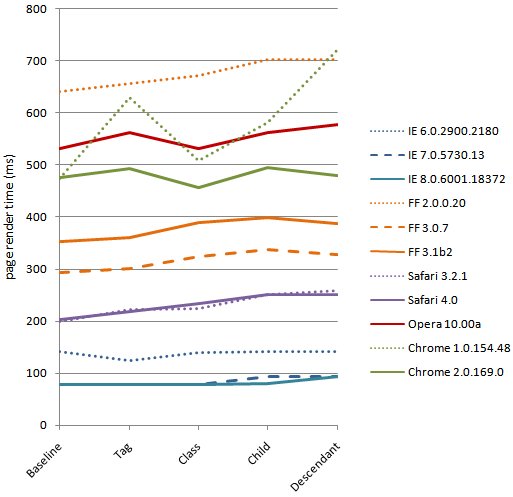
Performance varies across browsers; strangely, two new browsers, IE 8 and Firefox 3.1, are the slowest but comparisons should not be made from one browser to another. Although all the tests for a given browser were conducted on a single PC, different browsers might have been tested on different PCs with different performance characteristics. The goal of this experiment is not to compare browser performance – it’s to see how browsers handle progressively more complex CSS selectors.
[Revision: On further inspection comparing Firefox 3.0 and 3.1, I discovered that the test PC I used for testing Firefox 3.1 and IE 8 was slower than the other test PCs used in this experiment. I subsequently re-ran those tests as well as Firefox 3.0 and IE 7 on PCs that were more consistent and updated the chart above. Even with this re-run, because of possible differences in test hardware, do not use this data to compare one browser to another.]
Not surprisingly, the more complex pages (child selectors and descendant selectors) usually perform the worst. The biggest surprise is how small the delta is from the baseline to the most complex, worst performing test page. The average slowdown across all browsers is 50 ms, and if we look at the big ones (IE 6&7, FF3), the average delta is just 20 ms. For 70% or more of today’s users, improving these CSS selectors would only make a 20 ms improvement.
Keep in mind – these test pages are close to worst case. The 2000 anchors wrapped in P, DIV, DIV, DIV result in 6000 DOM elements – that’s twice as big as the max in the top ten sites. And the complex pages have 2000 extremely inefficient rules – a typical site has around one third of their rules that are complex child or descendant selectors. Facebook, for example, with the maximum number of rules at 2882 only has 750 that are these extremely inefficient rules.
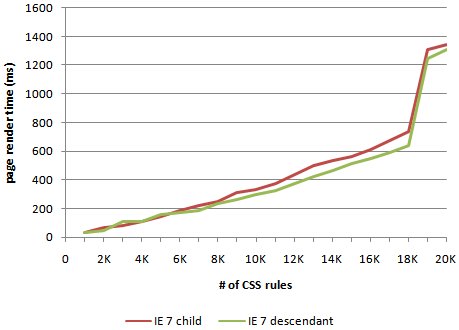
Why do the results from my tests suggest something different from what’s been said lately? One difference comes from looking at things at such a large scale. It’s okay to exaggerate test cases if the results are proportional to common use cases. But in this case, browsers behave differently when confronted with a 3 megabyte page with 60,000 elements and 20,000 rules. I especially noticed that my results were much different for IE 6&7. I wondered if there was a hockey stick in how IE handled CSS selectors. To investigate this I loaded the child selector and descendant selector pages with increasing number of anchors and rules, from 1000 to 20,000. The results, shown in the chart below, reveal that IE hits a cliff around 18,000 rules. But when IE 6&7 work on a page that is closer to reality, as in my tests, they’re actually the fastest performers.
Based on these tests I have the following hypothesis: For most web sites, the possible performance gains from optimizing CSS selectors will be small, and are not worth the costs. There are some types of CSS rules and interactions with JavaScript that can make a page noticeably slower. This is where the focus should be. So I’m starting to collect real world examples of small CSS style-related issues (offsetWidth, :hover) that put the hurt on performance. If you have some, send them my way. I’m speaking at SXSW this weekend. If you’re there, and want to discuss CSS selectors, please find me. It’s important that we’re all focusing on the performance improvements that our users will really notice.